
Summary
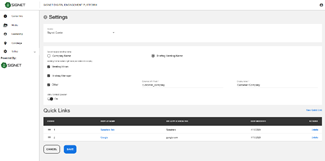
The ‘Settings’ sub-menu item opens a page (Figure 6.1) where the admin can do multiple adjustments that will affect appearance of the ‘Briefing’ tab in CE Client App and switch on/switch off the ‘Contact Speaker’ link on the ‘Speaker’ page.
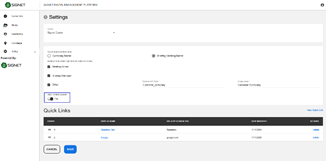
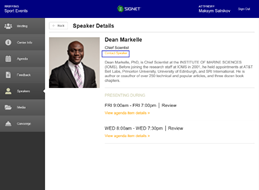
If the toggle ‘Allow Contact Speaker’ is on (Figure 6.2) , the ‘Contact Speaker’ link will be visible(Figure 6.3), if the toggle is off(by default), the ‘Contact Speaker’ link will be invisible.
|
Figure 6.1– Settings tab |
|
Figure 6.2 – Contact Speaker toggle |
|
Figure 6.3 - Contact Speaker link |
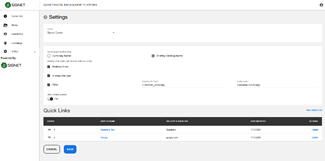
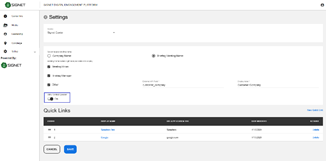
The radio button ‘Select header briefing name’(Figure 6.4) allows the admin to display in CE Client App either ‘Company Name’(by default) or ‘Briefing Meeting Name’ on the Header row(Figure 6.5).
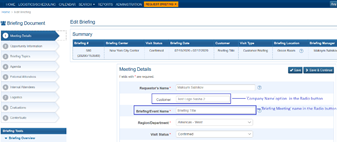
‘Company Name’ and ‘Briefing Meeting Name’ are the fields provided in BST(Figure 6.6)
|
Figure 6.4 - Radio button 'Select header briefing name' |
|
Figure 6.5 - Name of the Briefing in CE Client App |
|
Figure 6.6 - Fields from BST that are processed by the Radio button |
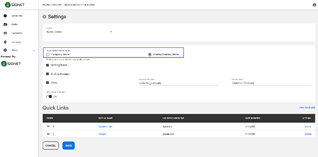
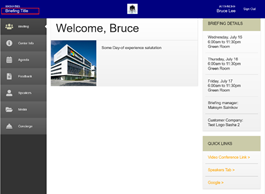
The checkbox ‘Briefing home screen right side pod details to display’(Figure 6.7), options: Meeting Room, Briefing Manager allows displaying/hiding these entities in the Briefing Details box in CE Client App(Figure 6.8)
|
Figure 6.7 – Checkbox: Meeting room, Briefing manager options |
|
Figure 6.8 - Meeting Room and Briefing manager in CE Client App |
The checkbox ‘Briefing home screen right side pod details to display’(Figure 6.7), options: Meeting Room, Briefing Manager allows displaying/hiding these entities in the Briefing Details box in CE Client App(Figure 6.8)
|
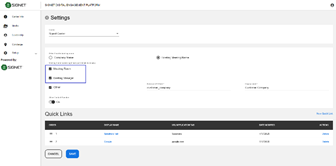
Figure 6.9 - Option 'Other' in the checkbox |
|
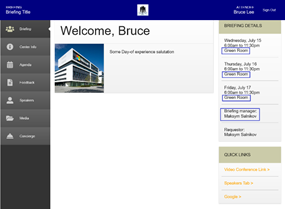
Figure 6.10- Custom field in CE Client App |
The option ‘Other’ in the checkbox ‘Briefing home screen right side pod details to display’(Figure 6.9) allows the admin to provide any available field from Briefing API and a label for this field which will be displayed in the ‘Briefing details’ box at the bottom(Figure 6.10). The list of all available fields from Briefing API can be seen in the Appendix of this document.
|
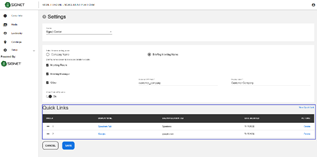
Figure 6.11 – the grid ‘Quick Links’ |
|
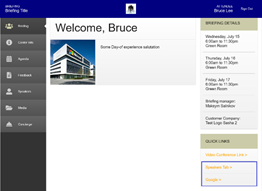
Figure 6.12 - the 'Quick Links' box in CE Client App |
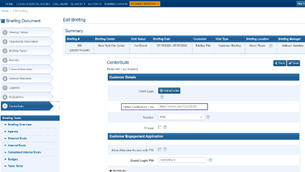
In the ‘Quick Links’ box(Figure 6.12) on the top there is the ‘Video conference link’. This link appears always on the top of the ‘Quick Links’ box, if only the admin provides this custom field in BST(Figure 6.13) and it doesn’t depend on adjustments in the ‘Quick Links’ grid(Figure 6.11)
|
Figure 6.13 – the ‘Video Conference Link’ field in BST |