
How can I customize the URL for the Request a Briefing button on the Nexus Program Site?
Configurations for the “Login” and “Request a Briefing” Program Site buttons were added to the Program Site settings. Users can enable/disable, rename and changes URLs for both buttons on the Experience – Program Site – Program Settings page. If the URL filed is empty, then it will navigate to default page: Login page for the “Login” button and Program Site Request Form for the “Request a Briefing” button. If Login button disabled to has changed URL for it, then User can navigate to login page by adding /login to the Program Site URL (ex. https://signet.hub.nexuscenter.io/program-site/login).
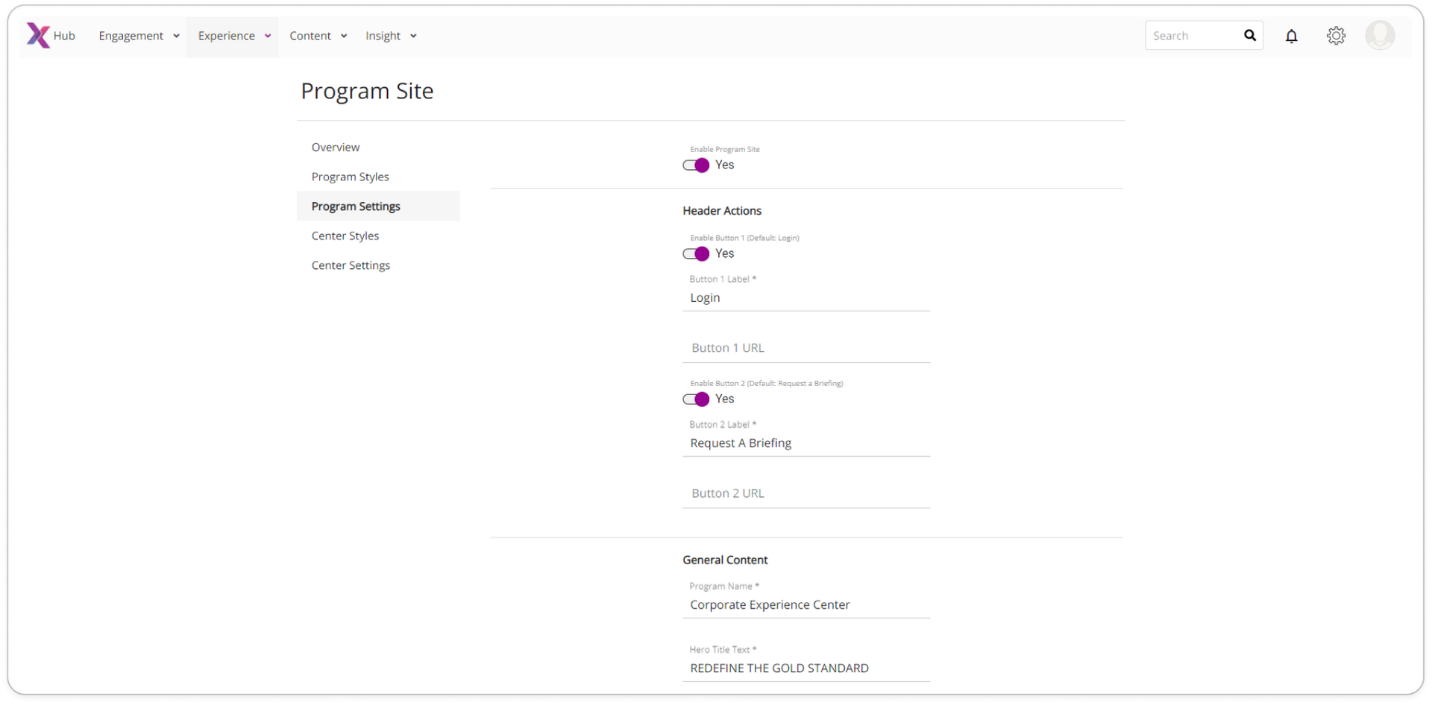
Figure 1. Program Site buttons configuration
Additionally, Users can enable/disable buttons on the Center Program site level for Center on the Experience – Program Site – Center Settings page.
Size of the buttons are responsive to number of characters in the button labels.
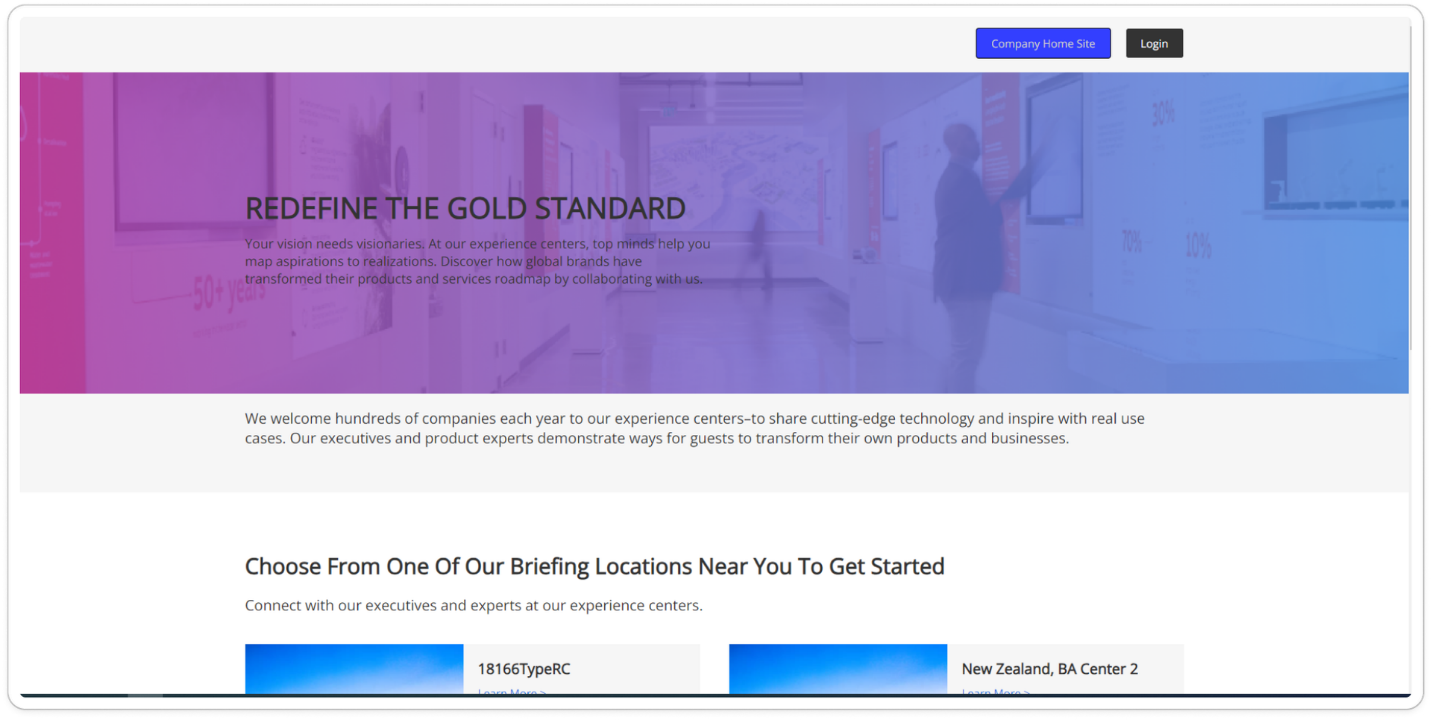 Figure 2. Updated buttons
Enabling “Request a Briefing” button style settings for the External Tenants
Program Site button configurations will be available both for Internal and External Tenants, so “Request a Briefing” button style settings on Experience – Program Site – Program Styles/Center Styles page now be available for External Tenants too.
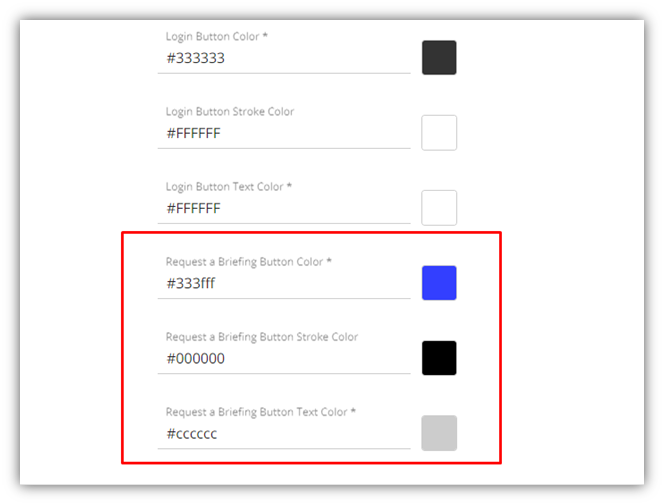
Figure 3. Request a Briefing button style settings.
Changes for the Program Site required fields
All Required text fields on the Experience - Programs Site - Program Settings page will have default text for them, so when new Centers are added then all required fields will always have text in them.
|
Field name |
Default Text |
|
Program Name |
Corporate Experience Center |
|
Hero Title Text |
REDEFINE THE GOLD STANDARD |
|
Hero Title Description |
Your vision needs visionaries. At our experience centers, top minds help you map aspirations to realizations. Discover how global brands have transformed their products and services roadmap by collaborating with us. |
|
Program Overview Text |
We welcome hundreds of companies each year to our experience centers–to share cutting-edge technology and inspire with real use cases. Our executives and product experts demonstrate ways for guests to transform their own products and businesses. |
|
Center Header Text |
Choose From One Of Our Briefing Locations Near You To Get Started |
|
Center Overview Text |
Connect with our executives and experts at our experience centers. |
|
<Center Name> Title Text |
<Center Name> |
All Required text fields on the Experience - Programs Site - Center Settings page will have default text for them, so when new Centers are added then all required fields will always have text in them.
|
Field name |
Default Text |
|
Hero Title Text |
Visit the Corporate Experience Center |
|
Hero Title Description |
Discover how our top minds help you succeed with engaging in-person and remote demons of our industry-leading solutions. |
“Hero Image” and “<Center Name> image” fields from the Experience - Programs Site - Program Settings page are no longer required. If these fields are empty, then default images will be displayed on the Program Site page.
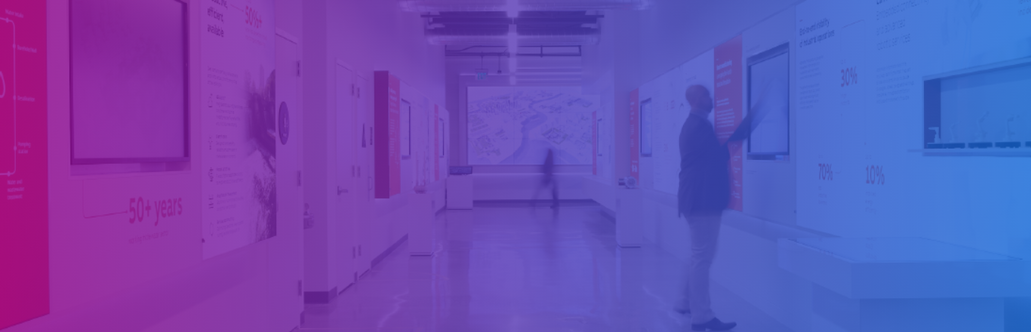 Figure 4. Default Hero Image
 Figure 5. Default <Center Name> image
Request Settings section update
All Program Site buttons configurations are now on the Experience - Programs Site in respective tabs. As a result, “Public Engagement Request” card with toggle that enabled/disabled “Request a briefing” button was removed from the Settings – Programs – Request Settings tab.