
Summary
You can choose whether or not to let attendees add themselves to the briefing if their name and email are not already in Briefing Source. Checking this box shown in Figure 3.1 will allow attendees to add themselves during the Login process via ‘Add me to Briefing’ button(Figure 3.2-3.4)
When the field ‘Guest Login PIN’ is unchecked in Figure 3.1 the button ‘Add me to Briefing’ in Figure 3.2 will be disabled.
Attendees adding themselves to the briefing will need to include their name and email (Figure 3.3) and then input their PIN for the briefing as shown in Figure 3.4. Attendees will only be able to use this PIN if the briefing manager sends it out – there is nowhere for an attendee to view this PIN unless they have been given it. When they successfully add themselves to the briefing, the briefing manager will receive an email that someone has added themselves to a briefing (Figure 3.5). The email also includes a link to revoke access if this attendee is not supposed to have access.
To see the full login process please reference Login Sections of the online documentation.
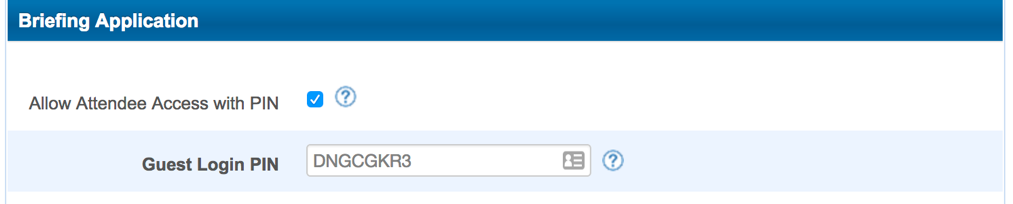
Figure 3.1 - Configuring PIN access in Briefing Source
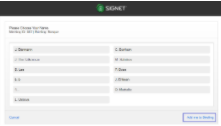
Figure 3.2 - Add me to Briefing
|
Figure 3.3 - Attendee entering new name and email |
Figure 3.4 - Enter PIN |
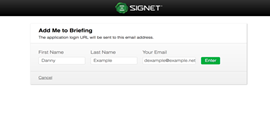
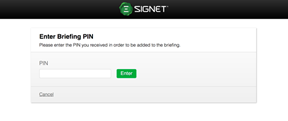
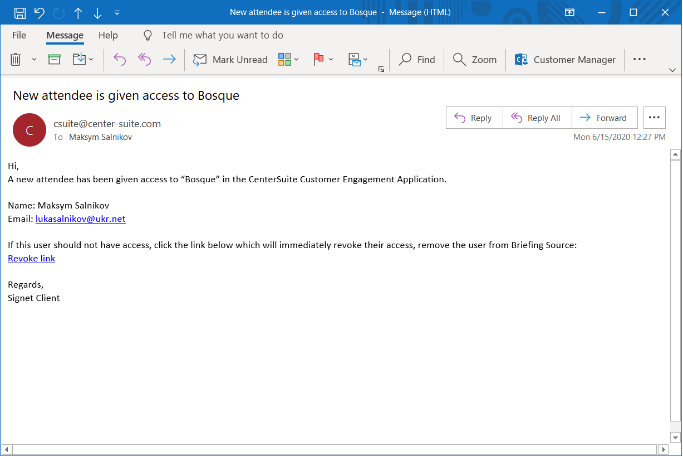
Figure 3.5 - Email to the briefing manager that someone is
added to the briefing