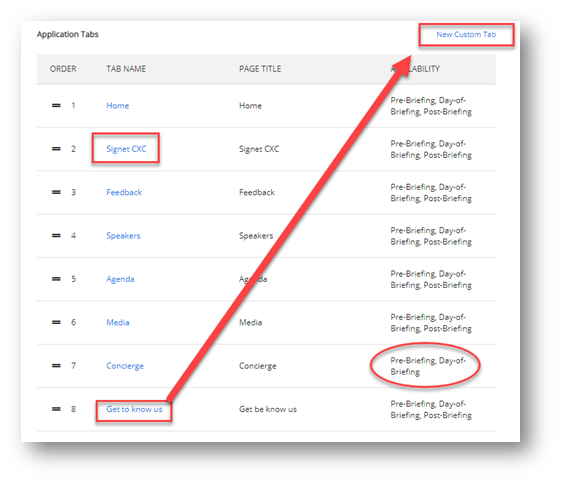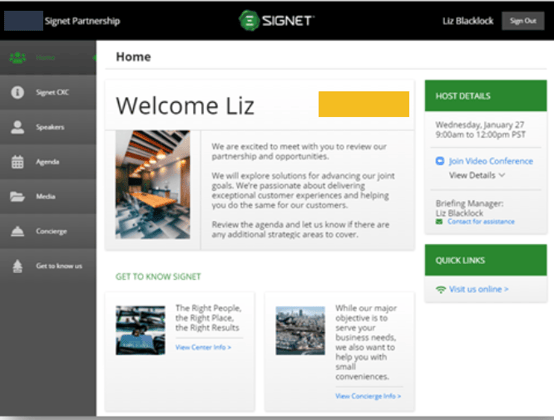
The Customer Engagement App Settings allows users to manage the App Tab Settings at the Center Level. Add a new custom tab, rename a tab &/or the page name, modify the schedule of the tab or edit the order of the tabs.
To access this functionality from the CenterSuite Home screen.
Check out our video here
--> Across the top of the home screen, you see the available Categories. Click EXPERIENCE and CE APP.
--> From the left-hand category list, choose SETTINGS.
--> Once in the SETTINGS, don’t forget to choose the specific center you will be working on.
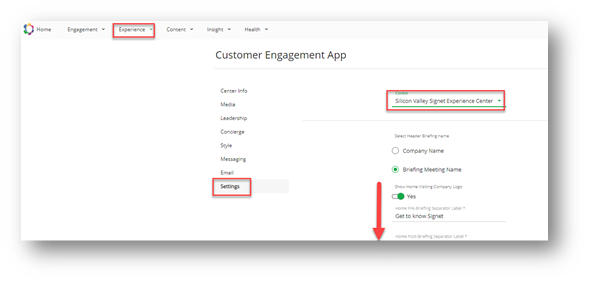
Scroll to the bottom of the settings options and you will see Application Tabs. From here you can:
- Add a new Custom Tab (webpage only)
- Click on New Custom Tab in upper right. Fill in form and click SAVE.
- You can rename the tab and/or the page name
- Click on the Tab Name and edit the tab and/or page title and click SAVE.
- You can have a tab on or off for phases (Pre, During and Post)
- Click on the Tab Name and edit the phases of the briefing for which it's available and click SAVE
- You can Re-order the tabs by clicking on the double link and sliding to a different location
- Grab the 3 bars icon and re-order as desired.