
The ability to customize email templates per different centers and engagement types is one of the essential parts of the core scheduling functionality that will give our customers extreme flexibility regarding email sending.
Customers can create as many templates as they need for each email type and choose which they want to send to attendees and speakers.
Email types list
All existing email types are divided into three sections for easier search of the needed one:
- Invitation
- Engagement
- Customer Portal
In addition to that, additional speaker/attendee email types are added, and now clients can set up different templates per each attendee group.
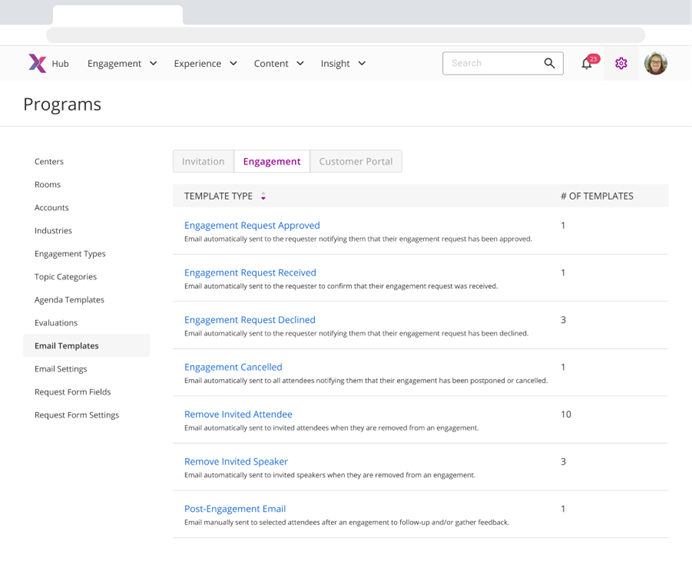
Figure 1. Programs - Email Templates
Email templates list
The User can review all templates created per the specific email type by clicking its name.
By default, one standard template is created per each email type. The User can create as many custom templates as they want.
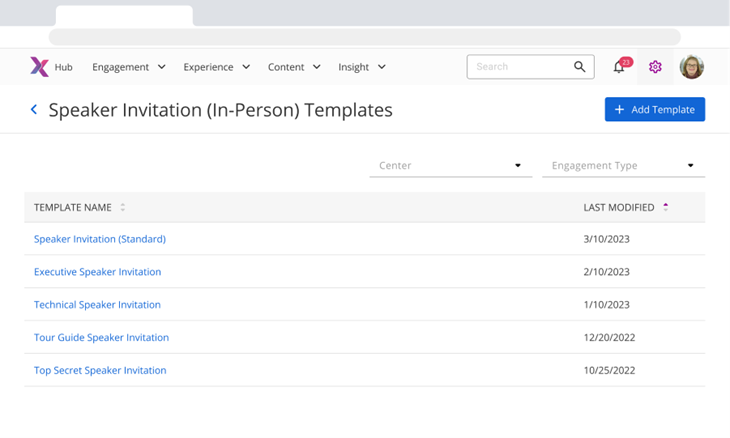
Figure 2. Email Templates list
Standard template
A standard (default) template is created per each email type. The User can update the standard template information but cannot delete it from the system.
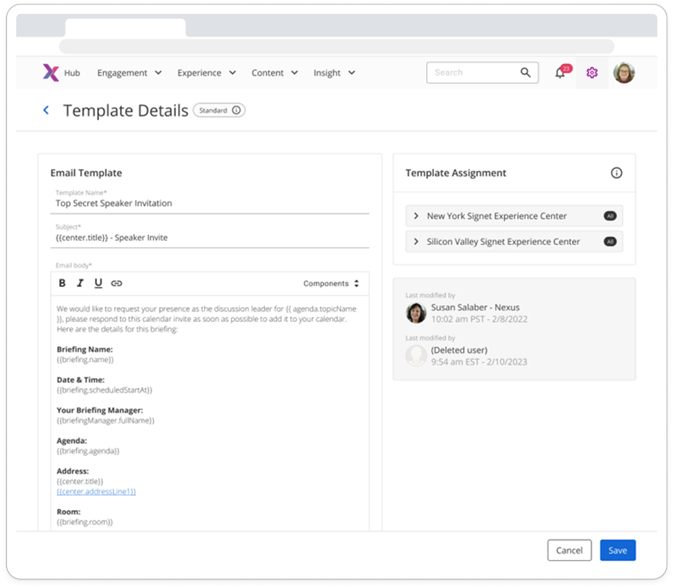 Figure 3. Template Details
|
Fields |
Description |
Validation |
|
Template Name* |
|
|
|
Subject* |
|
|
|
Body* |
|
|
Custom template
The User can create as many custom templates per the email types as they want. When the custom template is deleted, the template assignment is re-assigned to the standard template.
Template Assignment
The new element of the template is “Template Assignment,” which defines which template will be shown first in the template drop-down while emailing the attendees/speakers manually. For automatically sent emails, template assignment defines which template will be automatically sent to the User.
One template can be assigned to multiple centers/types. Template assignment is not required; the User can have templates without it.
One combination of center/engagement types can be assigned only to one template.
|
Case |
Description |
|
Template assignment (standard template) |
· New/deleted/re-assigned engagement type should be assigned to the standard template for each email type · the user cannot uncheck center/engagement type combinations used by the standard template. · the user can assign center/engagement type combinations already used by the non-standard template, which will be unchecked from the non-standard template. |
|
Template assignment (custom template) |
· the user can uncheck center/engagement type combinations previously assigned, and this combination will be re-assigned to the standard template. · the user can assign center/engagement type combinations already used by the standard template, which will be unchecked from the standard template. |
|
New/deleted/re-assigned engagement type |
|
|
New center |
|
Attendees Tab
Attendees tab in the Briefing details was redesigned and updated. Now Speakers are displayed on the Attendees tab as a different attendee type. Additionally, all participant types will be displayed alphabetically in separate tables. “No <participant type> has been added to this engagement” message will be shown in the participant table If no participants are added to it.
For the Speaker table, the Invite Status of each Agenda Item will be displayed separately for each Speaker. Agenda Items with deleted and Blank topics will not be displayed for the Speakers on the Attendee tab. If the speaker is assigned only to the Blank and deleted topics, then this Speaker will not be displayed on the Speakers tab.
“No <participants type> have been added to this engagement” message will be displayed in the table if no participants are added. Any participant can be removed from the Engagement by clicking the “x” button. If the User clicks on the “x” button for the Speaker, then this Speaker will be removed from all his Agenda items in the Engagement. A corresponding cancellation email will be sent to the removed participant.
Additionally, the “Update needed” message will be displayed instead of Invite Status (previously, it was under it).
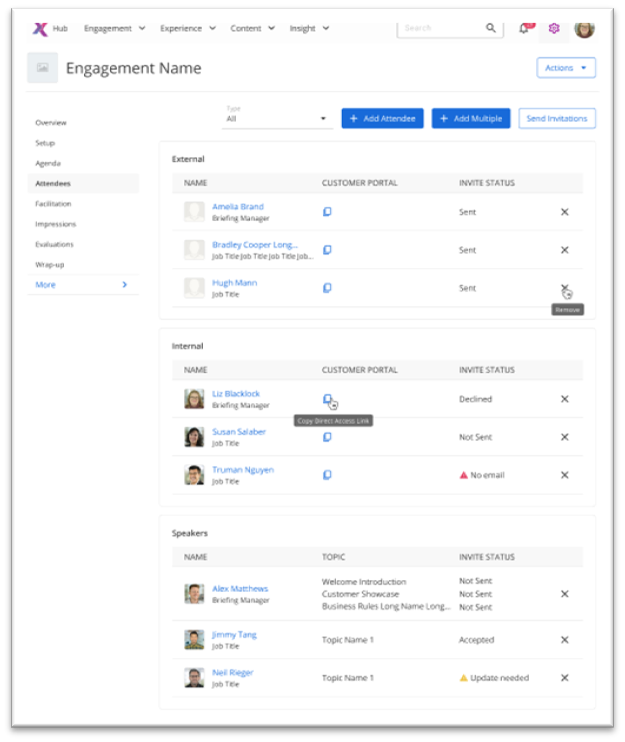 Figure 4. Attendees tab
Select Attendees page
By clicking the “Send Invite” button, the User will be navigated to the updated “Select Attendees” page. On the page, the User can select what Attendees’ emails will be sent. This page will be displayed for all emails sent manually from the Engagement: Invites, Customer Portal Links, and Post-Engagement Emails.
The Speakers table will be displayed only if the Invite Email type is selected. In this case, the User can select to what Agenda item the Speaker invite will be sent.
The “Next” button will be disabled if the User did not select any Attendee or Agenda Item. The User can return to the previous page by clicking on the back button at the bottom of the back arrow to the left of the page label.
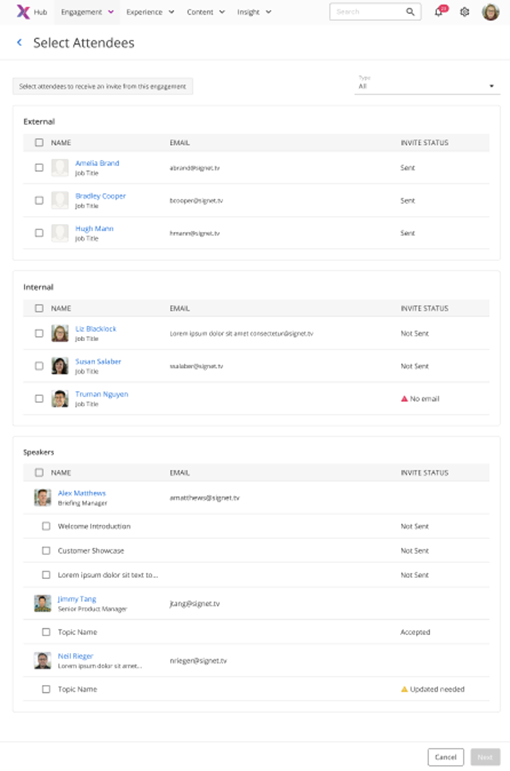 Figure 5. Select Attendees page
Email Sending Page
After the User selects Attendees on the “Select Attendees” page, they will be navigated to the Email Sending page. This page consists of the External and Internal tabs. All Attendees selected on the previous page will be displayed in the “Selected <participant type>” component on the corresponding tab. If this is an Invite Email, then the Speakers tab will be displayed too, and all Speakers assigned to the selected Agenda Items will be displayed on it. The User can find the number of selected participants in each tab to the right of each tab.
The User will see the template assigned as default for this Center and Engagement type on each tab. Users can select any other template available for the email type chosen. Users can update the “Subject” and “Email body” before sending them to the selected participants. If the user wants to update the participant selection, they can click on the back button at the page button or the back arrow to the left of the page label. In this case, the User will be navigated to the Attendee selection page, displaying the previous selection. If the user reloads this page, Suer will be navigated to the previous page without preserving participant selection.
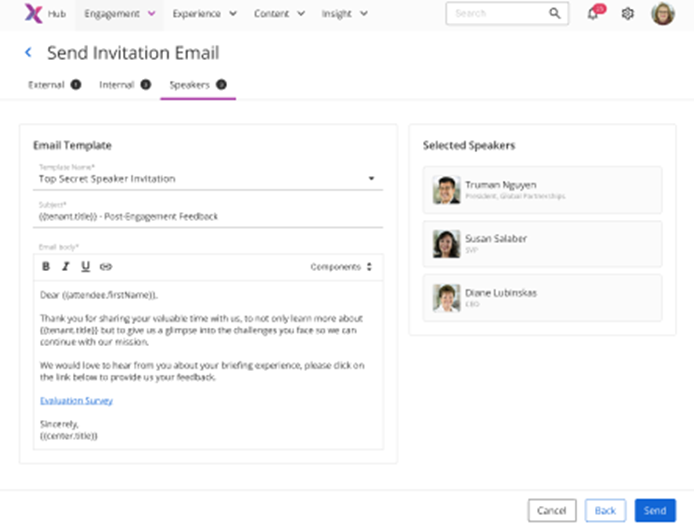 Figure 6. Send <Email> page
Variables Update
Lists of variables available for selection in the list for the Request Engagement and Cancellation emails was updated to the following:
|
Email types |
New variables labels |
New variables system names |
|
Engagement Request Approved |
Center and Engagement Type of Request |
|
|
Sections and Fields of Request |
||
|
Engagement Request Received |
Center and Engagement Type of Request |
|
|
Sections and Fields of Request |
||
|
Engagement Request Declined |
Center and Engagement Type of Request |
|
|
Sections and Fields of Request |
||
|
Engagement Cancelled |
Briefing Name |
|
|
Briefing Date and Time |
||
|
Briefing Manager Name |
||
|
Briefing Agenda |
||
|
Center Title |
||
|
Tenant Title |
||
|
Remove Invited Attendee |
Attendee First Name |
|
|
Attendee Last Name |
||
|
Briefing Name |
||
|
Briefing Date and Time |
||
|
Briefing Manager Name |
||
|
Briefing Agenda |
||
|
Center Title |
||
|
Tenant Title |
||
|
Remove Invited Speaker |
Speaker Name |
Speaker Name |
|
Briefing Name |
Briefing Name |
|
|
Briefing Date and Time |
Briefing Date and Time |
|
|
Briefing Manager Name |
Briefing Manager Name |
|
|
Briefing Agenda |
Briefing Agenda |
|
|
Center Title |
Center Title |
|
|
Tenant Title |
Tenant Title |