
Speakers are an essential part of the engagement process, influencing the amount of collective opportunity. Finding the most appropriate speaker to present the topic is critical for successful engagement.
The Speaker’s form is expanded with new fields, which can now be managed on a separate tab. Fields are logically divided into four sections:
- Speaker info
- Location
- Trainings & Skills
Bio & Notes
|
Section |
Field Name |
Required / Optional |
Field type |
Custom / Admin-Defined Options |
Default Options |
Editable |
|
Speaker info |
Speaker Type |
Optional |
Multi-selection |
Custom |
- Executive - Product Expert - Technical |
Yes |
|
Speaker info |
First Name |
Required |
text field |
- |
- |
No |
|
Speaker info |
Last Name |
Required |
text field |
- |
- |
No |
|
Speaker info |
|
Required |
input type=" email |
- |
- |
No |
|
Speaker info |
Account |
Optional |
Single-selection |
Predefined |
the list of all accounts existing in the tenant |
No |
|
Speaker info |
Photo |
Optional |
input type=" file |
- |
No |
|
|
Speaker info |
Title |
Required |
text field |
- |
- |
No |
|
Speaker info |
Center |
Required |
Multi-selection |
Predefined |
the list of all centers existing in the tenant |
No |
|
Speaker info |
Associated Topics |
Optional |
Multi-selection |
Predefined |
the list of all topics existing in the tenant |
No |
|
Speaker info |
Onboarding Status |
Optional |
Single-selection |
Predefined |
- Pending - Onboarded |
No |
|
Location |
Region |
Optional |
Single-selection |
Custom |
- AMER - APAC - EMEA |
Yes |
|
Location |
Country |
Optional |
Single-selection |
Predefined |
Hub default country list |
No |
|
Location |
State |
Optional |
Single-selection |
Predefined |
Hub default state list |
No |
|
Location |
City |
Optional |
Text Field |
- |
- |
No |
|
Location |
Zip |
Optional |
Integer |
- |
- |
No |
|
Location |
Phone Number |
Optional |
Integer |
- |
No |
|
|
Trainings & Skills |
Fluent Languages |
Optional |
Multi-selection |
Custom |
- Chinese - English - French - German - Italian - Japanese - Portuguese - Spanish - Ukrainian |
Yes |
|
Trainings & Skills |
EBC Training |
Optional |
Multi-selection |
Custom |
- Basic Training - Advanced Training |
Yes |
|
Trainings & Skills |
Audience Type |
Optional |
Multi-selection |
Custom |
- Executive - Technical |
Yes |
|
Trainings & Skills |
Fluent Industries |
Optional |
Multi-selection |
Predefined |
the list of all industries existing in the tenant |
No |
|
Trainings & Skills |
Presentation Style |
Optional |
Multi-selection |
Custom |
- Oral - Whiteboard - Demo - Design Thinking |
Yes |
|
Trainings & Skills |
Open to Travel |
Optional |
Single-selection |
Custom |
- Yes - No |
Yes |
|
Trainings & Skills |
Engagement Format Availability |
Optional |
Multi-selection |
Predefined |
- In-person - Virtual - Hybrid |
No |
|
Bio & Notes |
LinkedIn URL |
Optional |
Text Field |
- |
- |
No |
|
Bio & Notes |
Bio |
Optional |
WYSIWYG field |
- |
- |
No |
|
Bio & Notes |
Notes |
Optional |
WYSIWYG field |
- |
- |
No |
Specific fields are editable, and the User can create options for them. The User can click on the field name and set up options on the “Speaker Details” page.
The first label is always required; other options are optional.
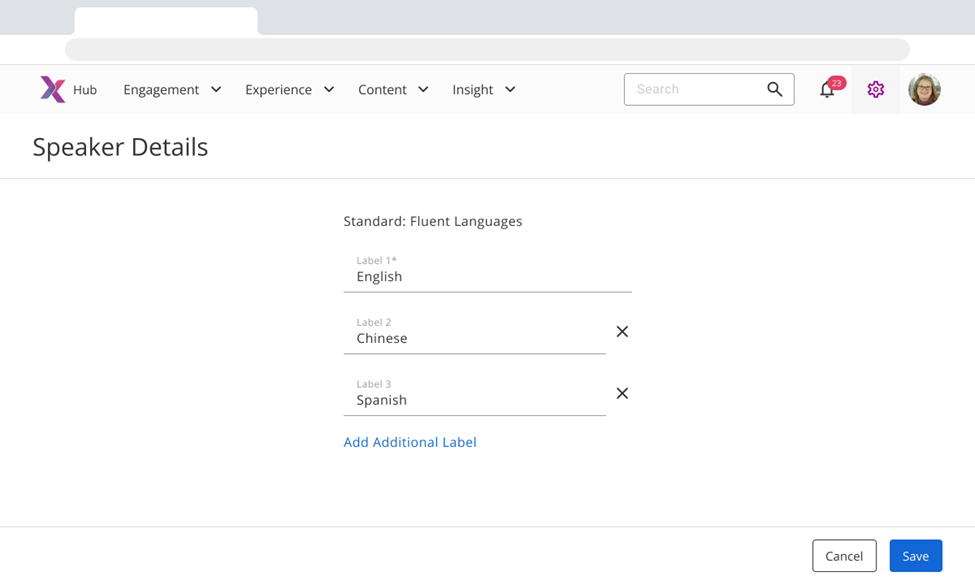 Figure 1. Speaker Form Fields - Speaker Details
The Speaker’s form configuration is not available for External tenants.
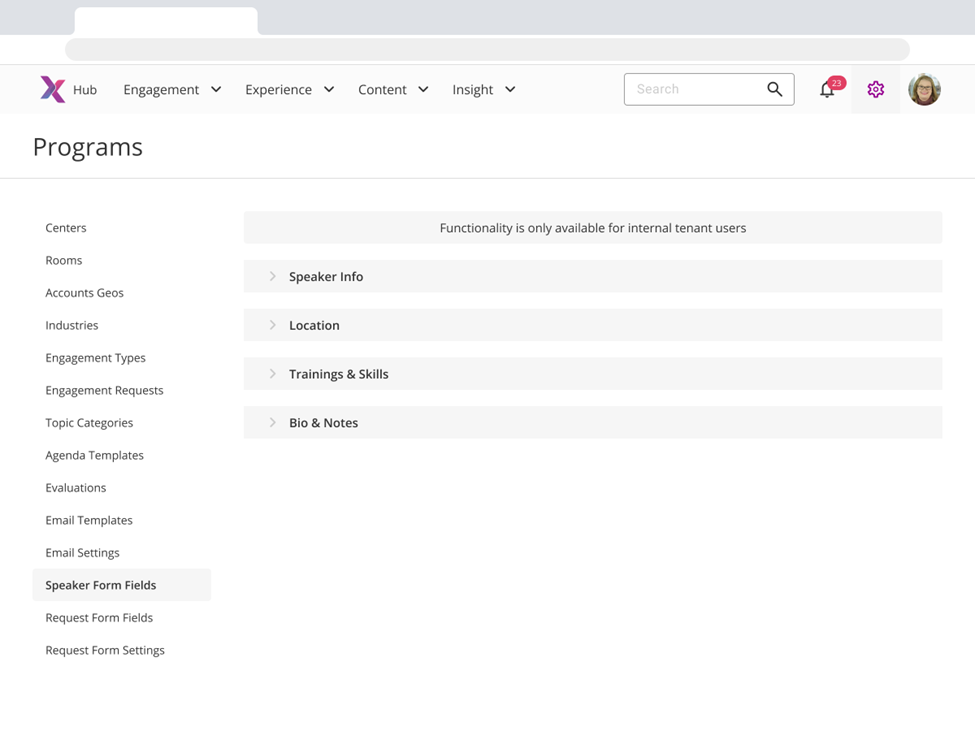 Figure 2. Speaker Form Fields - External tenants
Speakers - Add/edit single speaker
All Speakers form settings that are configurated under the Programs – Speaker Form Field tab will be reflected on the “Add/Edit Speaker” form:
- The order of the fields
- Custom options for single/multi fields selection
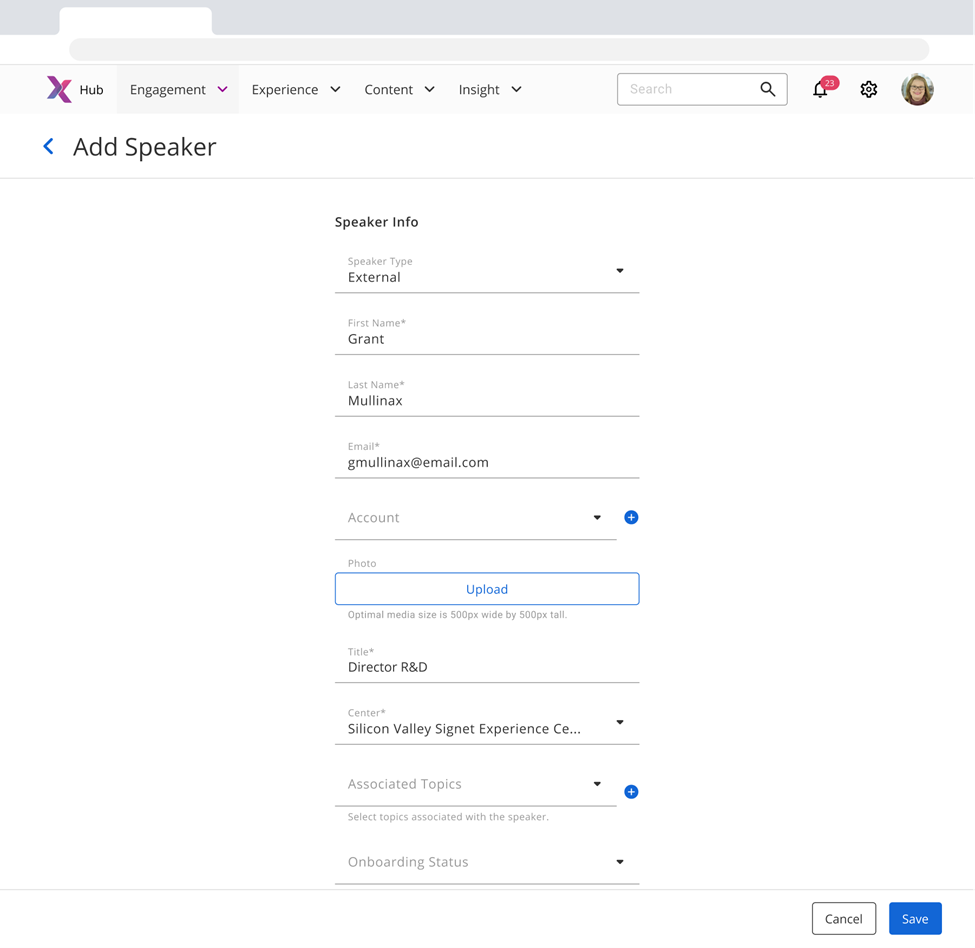 Figure 3. Speakers - Add Speaker
These changes will not affect existing Speakers created in the system except that they will be assigned to the tenant account.
Speakers – Add multi-speaker
New fields are not added to the multi-speaker form.
Speakers Export Document
All new Speaker fields were added to the Speaker Export Document on the Engagement - Speakers page. The list of all fields from the Export is following:
- Speaker Type
- Speaker Name
- Account
- Title
- Associated Topics
- Centers
- Onboarding Status
- Region
- Country
- State
- City
- Zip
- Phone Number
- Fluent Languages
- EBC Training
- Audience Type
- Fluent Industries
- Presentation Style
- Open to Travel
- Engagement Format Availability
- LinkedIn URL
- Bio
- Last Briefing Date
- Avg Rating
- # of Sessions
- Last Modified Date
Agenda Item Details update
The Agenda Item Details page now has two tabs: Topic Details and Speaker Details. The User can select and update Topic Details for the Agenda Item on the first tab. The Topic Details tab consists of the following fields:
- Topic Category
- Topic
- Start Time
- Duration (min)
- Meeting Room
- Main Room of the first Engagement Day will be selected by default
- Topic Name Override
- Topic Description Override
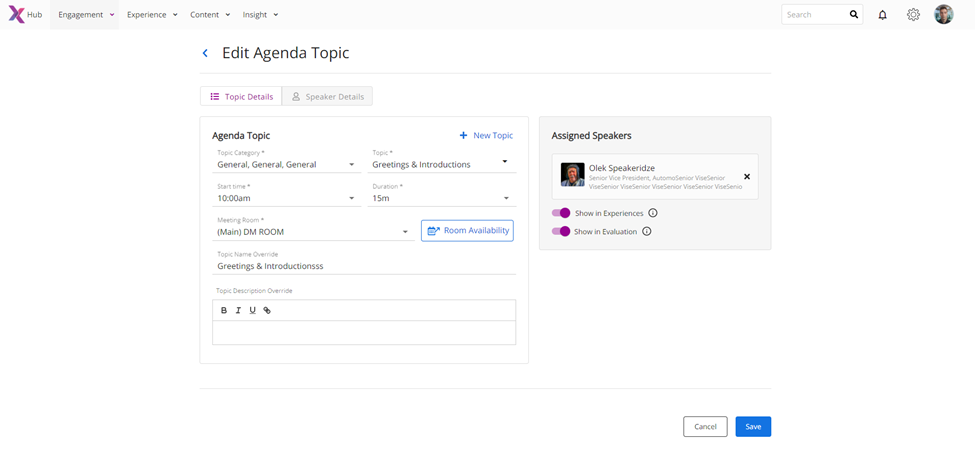 Figure 4. Topic Details tab
The User can search and assign Speakers to the selected Agenda item on the Speaker Details tab. Speakers can be assigned in 2 ways. The first option is to choose Speakers from the “Speaker” field in the “Search for Speaker(s)” component. The second option is to assign Speakers from the list of Recommended Speakers generated based on filter selection in the “Filter for Recommendations” component. Next filters and toggles can be used for filtering recommended speakers:
- Speaker Type filter
- Center filter
- Assigned to Topic toggle
- Region filter
- Country filter
- Fluent Languages filter
- Audience Type filter
- Presentation Style filter
- Engagement Format Availability filter
The User will see the same values in the filters as in the relevant speaker fields from the Setting – Programs – Speaker fields page.
All Speakers from the Recommended list can be assigned to the selected Agenda Item by clicking on the Speaker card or plus sign on it. When the Speaker is assigned from the Recommended list, their card remains displayed with a grey plus button until Agenda Item updates are saved. The “Assigned Speakers” component will display all assigned speakers on both Agenda Item tabs. The user can remove any Speaker assigned to the agenda item by clicking on the “x” button on the Speaker card. Additionally, the restriction for the maximum number of Speakers per Agenda item is removed, and the User can assign as many Speakers as needed (previously, it was 10).
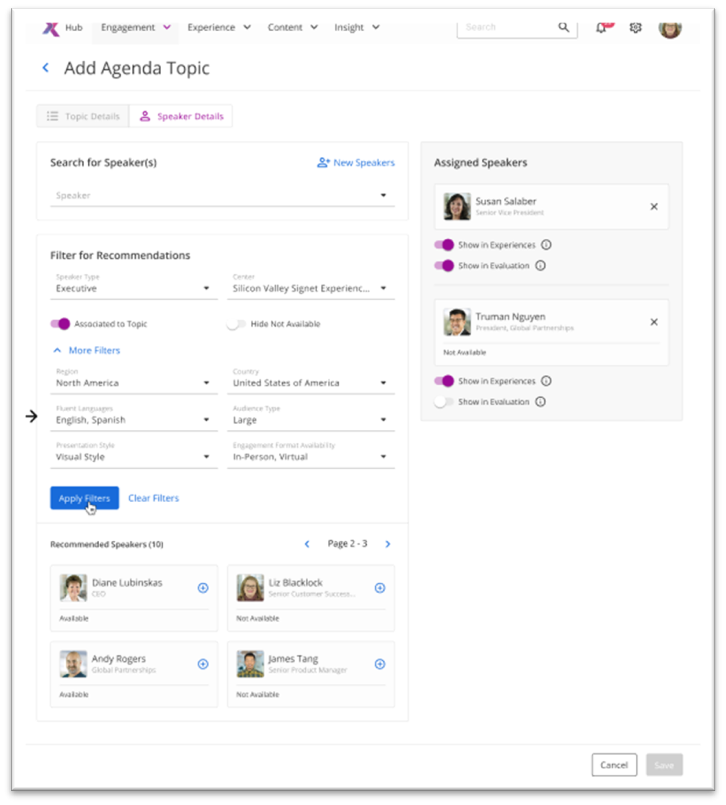 Figure 5. Speaker Details tab
Nexus Open API
All new speaker fields are available via Nexus Open API.