Convert your Video to the correct format for Content Playback
This article outlines a step-by-step procedure to convert a video to the correct format for display through the Content Manager onto Signet Players
- For MAC users:
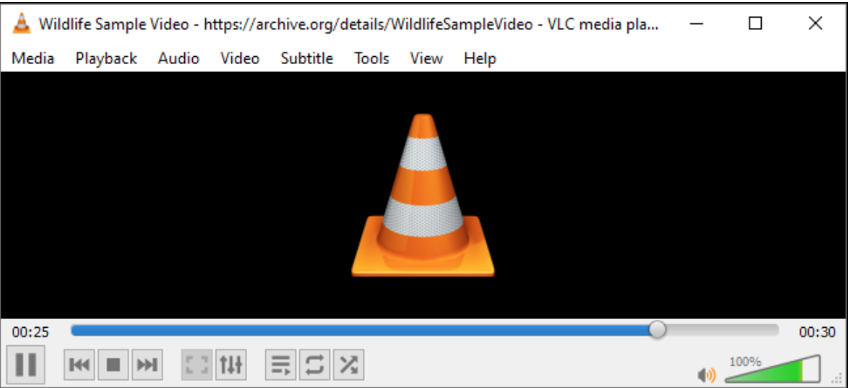
- Launch VLC Media player
- Click on “File” on the top taskbar:
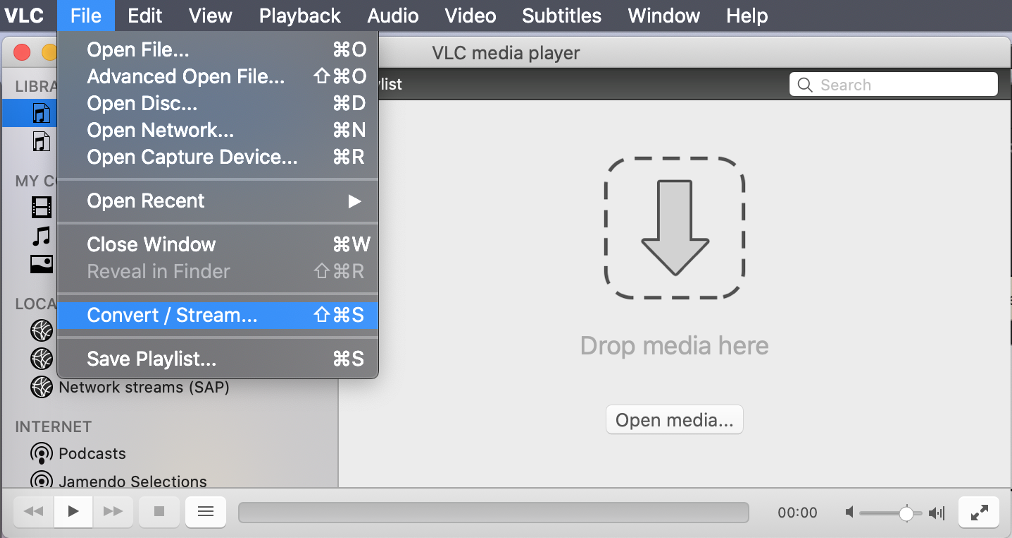
- A Pop-up box named “Convert&Stream” should open up.
- Upload the media items by clicking “Open Media”
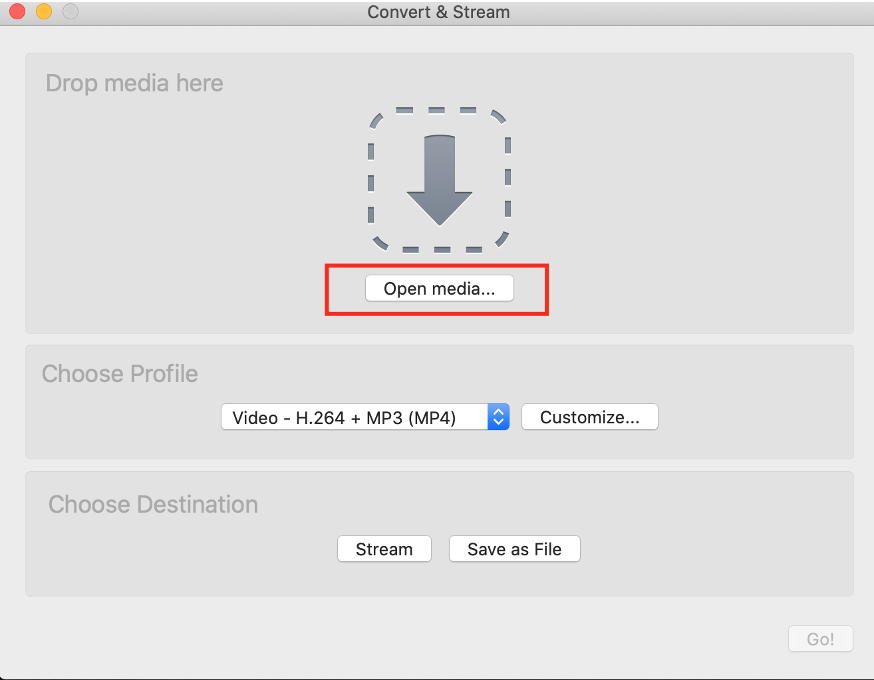
- This will navigate you to your native file explorer, select the video you would like to convert.
- Ensure the “Choose Profile” is set to “Video – H.264 + MP3 (MP4)”
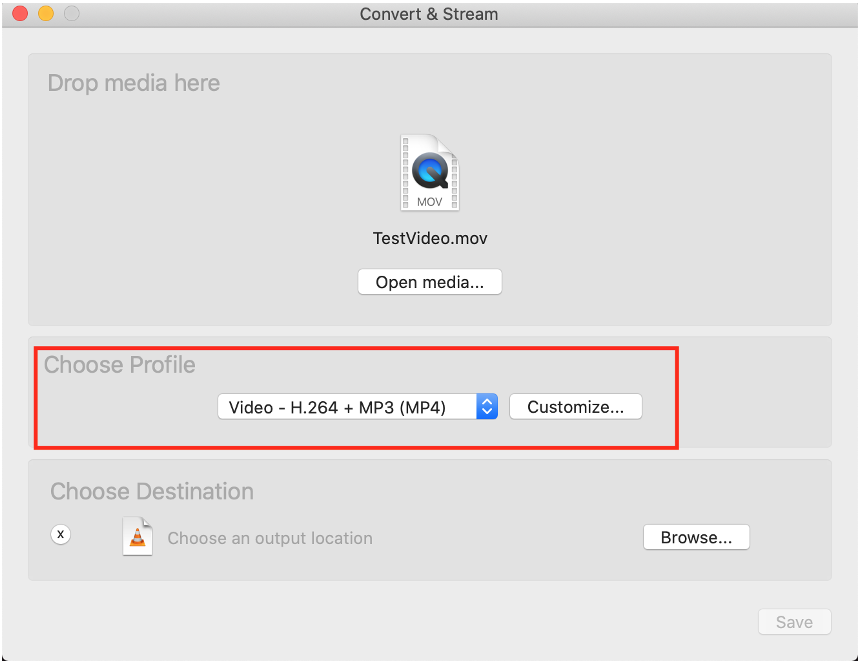
- Next, Click on “Browse” under “Choose Destination” to name the file appropriately and store it in the desired location on your desktop.
- For Windows Users:
- Open VLC and click Media>Convert/Save
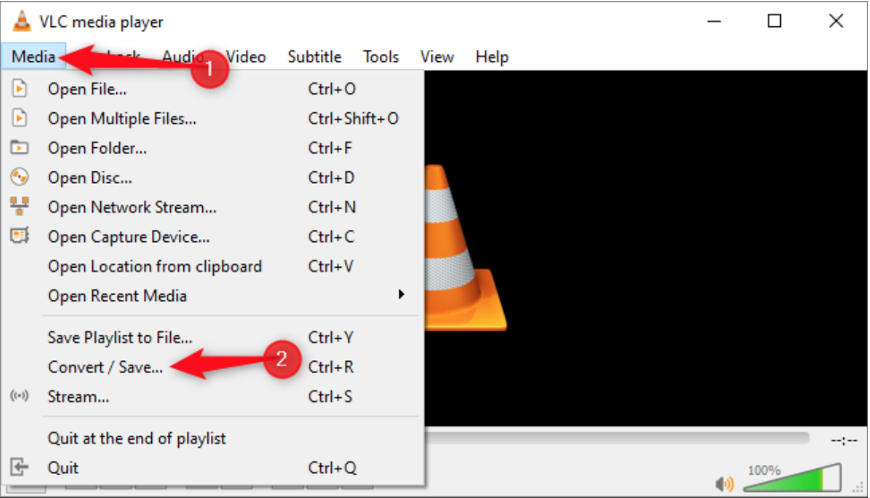
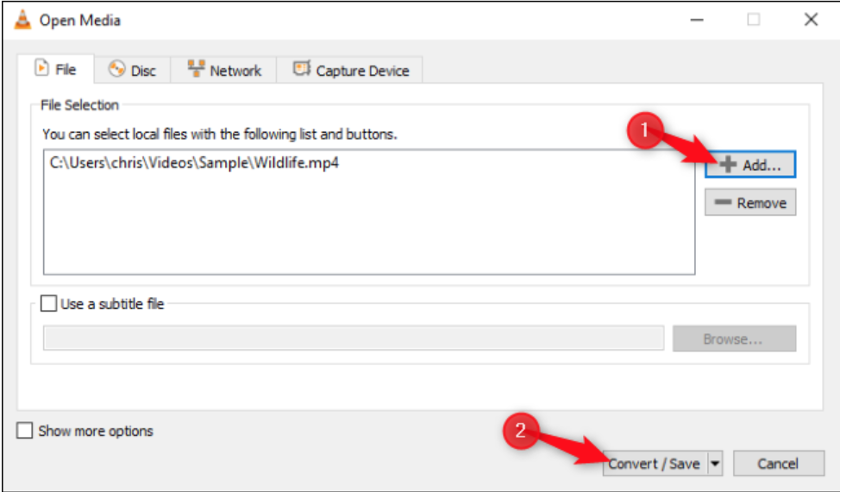
- Click “Add” to the right of the File Selection list on the File tab. Browse to the video or audio file you want to convert and open it.
- Click “Convert/Save” to continue.
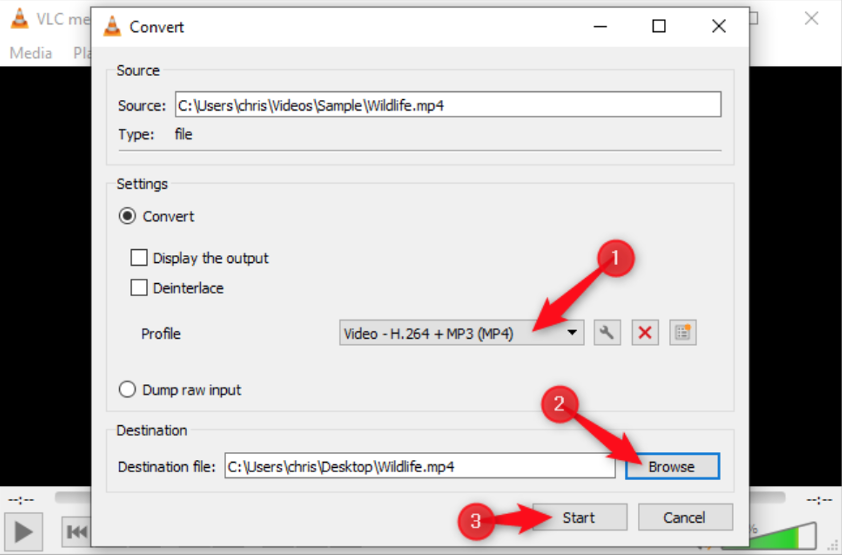
- Under Convert, choose “Video – H.264 + MP3 (MP4).”
- Click the wrench icon (the “Edit Selected Profile” button) to the right of the Profile list for more options.
- Click “Browse” and choose a location and filename for the output file.
- When you’re done, click “Start” to perform the conversion
- VLC’s progress bar gradually fills up as it completes the conversion process.