
Summary
‘Center Info’ section in CE Client App is entirely adjusted in CE Admin App.
In order to adjust this section you should open ‘Center Info’ menu item in CE Admin App(Figure 1.1). On the ‘Center Info’ page there is a grid with the list of available centers for which it’s necessary to provide adjustments. In a simple case the grid has one record – one center. You should click on the name of the center to drill down information. Once you do it, you will see ‘Center Info Details’ page(Figure 1.2)
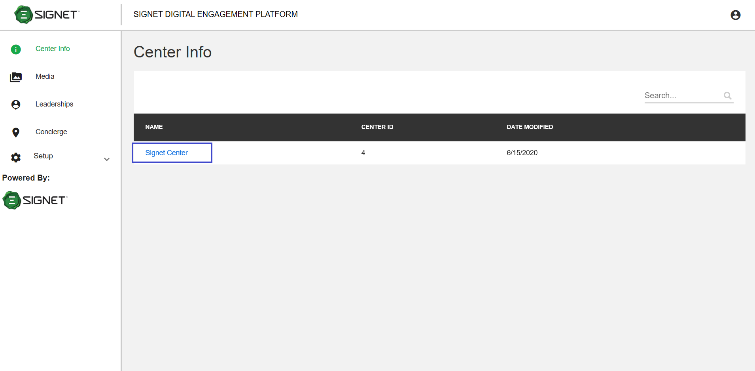

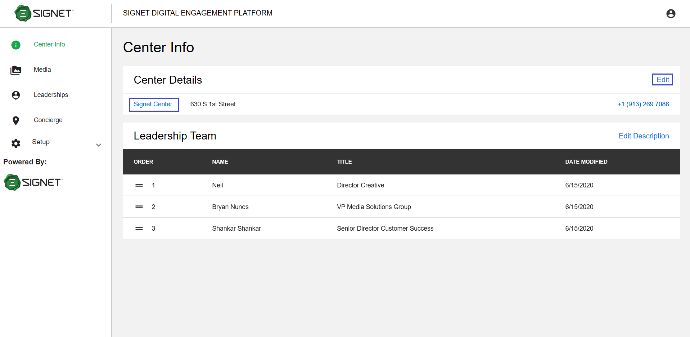

For providing detail information about Center you should click the ‘Edit’ button or the name of center(Figure 1.2). After that on a new page you can provide all data about Center(Figure 1.3): Center name, Address, Phone Number, Web Site, Center Info Description, Center Info Overview. Here you should provide also Center Info Media files(multiple uploading of files is available), Center Info Thumbnail, Center Info Brochure. Some fields on the page are mandatory(with asterisk on the right), some ones are optional. The ‘Save’ button becomes enable when you fill out all mandatory fields.
All information provided here will be shown in CE Client App mostly on Center Info tab(Figure 1.4)
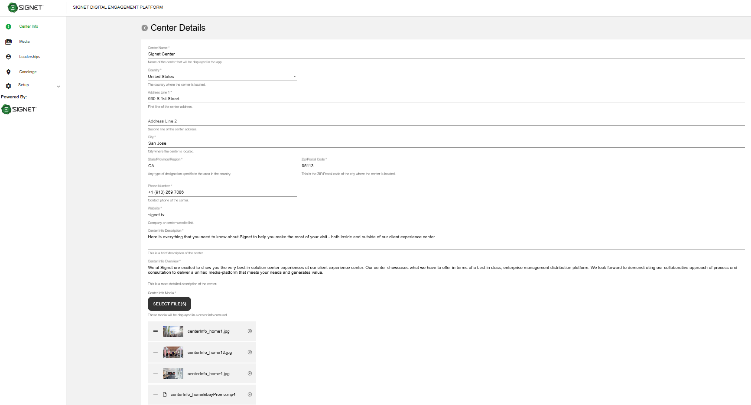
Figure 1.3 - Center Info Detail - fields population
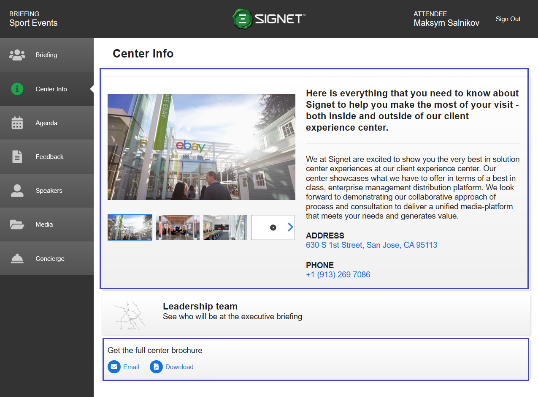
Figure 1.4 - Center Info - App