
Concurrent topics functionality gives Users possibility to assign multiple topics of the same engagement to the same room and period. This functionality improves the creation and management of agenda items, granting users greater freedom and ease.
Agenda Item Details page
Now, the User can select room for the Agenda Item that is booked by another Agenda Item of same Engagement on the Agenda Details page. It can be done in two ways: from the Agenda Item details page or on the Agenda Calendar view tab.
On the Agenda Details page User can select already booked time and room in the corresponding dropdowns. For the Agenda Calendar tab, the User can just drag&drop Agenda Item on any room and time slot that is booked by the Agenda Item of same Engagement. Up to 3 overlapping Agenda Items can be displayed at one time slot. All additional Agenda Items will be displayed in the “+x” component, where “x” is number of additional concurrent Agenda Items. To see all other Agenda Items the User needs to click on the “+x” component to open pop-over with them. The User cannot drag&drop Agenda items from the pop-over.
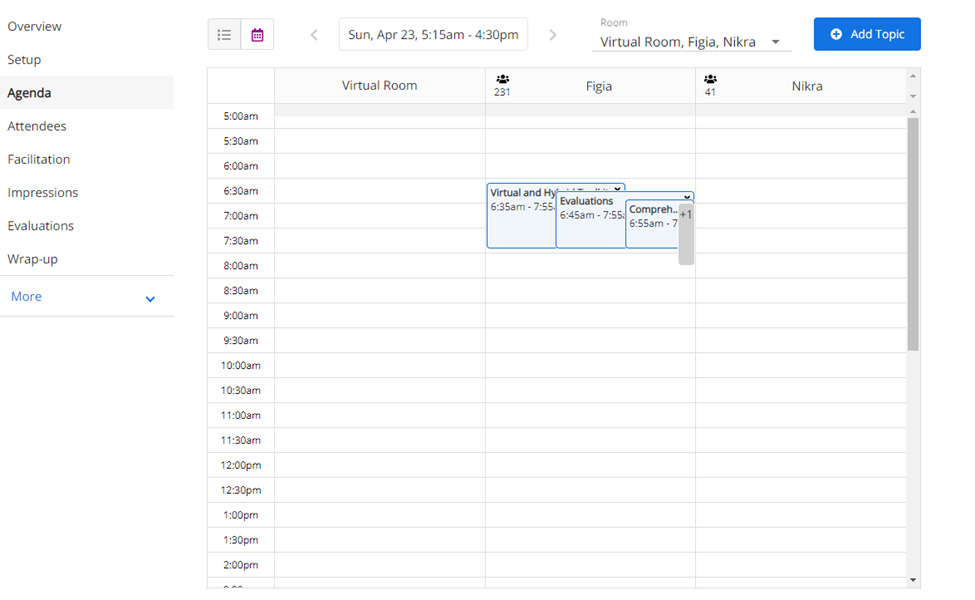 Figure 1. Concurrent Topics on the Agenda Calendar tab
All Concurrent Agenda Items will be sorted by Start Time (Topic Name sorting will be applied for Agenda items with the same Start time). The “+x” component size is same as the size of the first Agenda item in the component. “+x” label will not be displayed on the component it is too small to fit it.
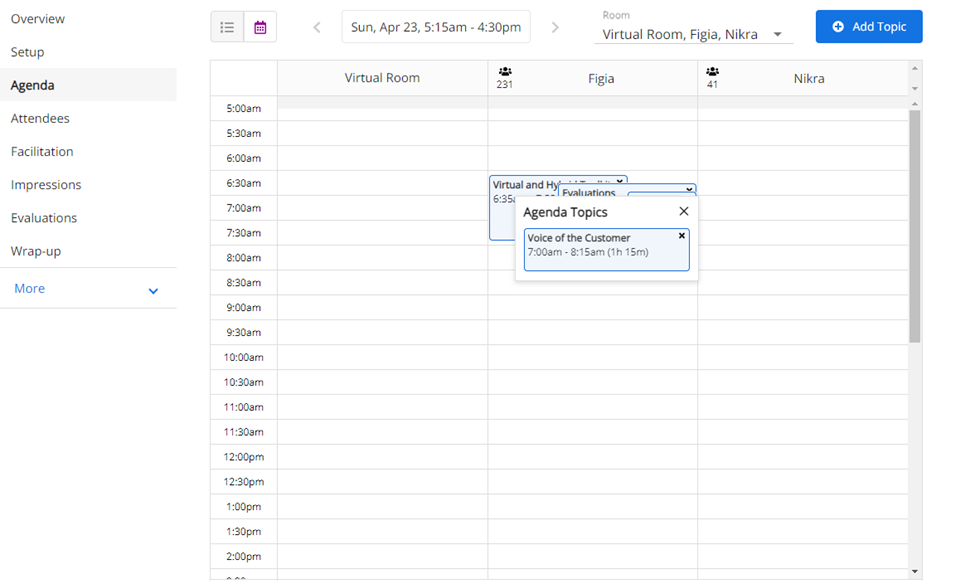 Figure 2. Pop-over with additional Concurrent Topics on the Agenda Calendar tab
Other Improvements
From now on, selected Agenda Items will be highlighted, so the User will always see what Agenda item is selected.
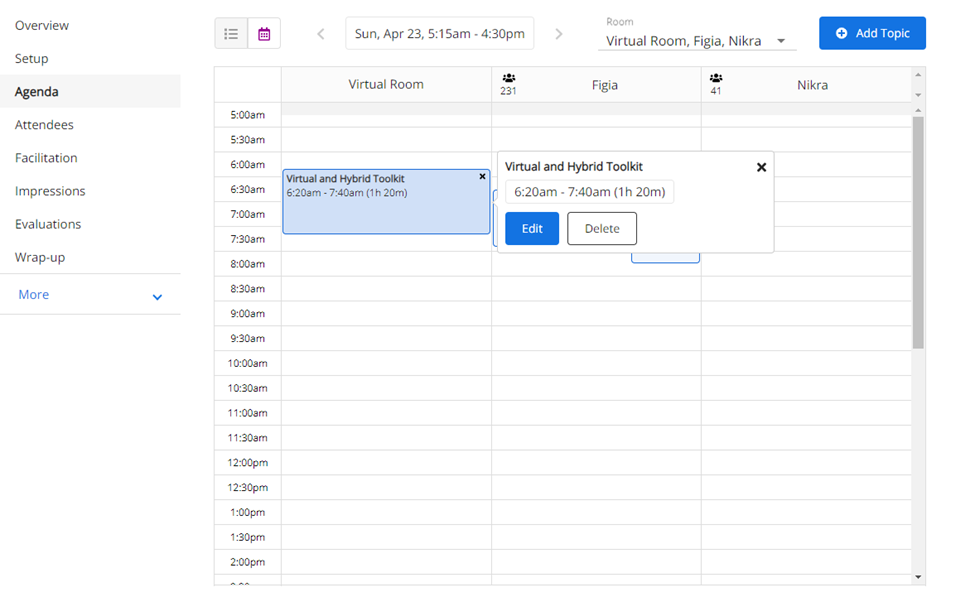 Figure 3. Highlighted Agenda item
Additionally, if only one or two rooms selected in “Room Filter” on the Agenda Calendar view, then they will take all space on the calendar, so the User will not see any empty columns on the Calendar view.
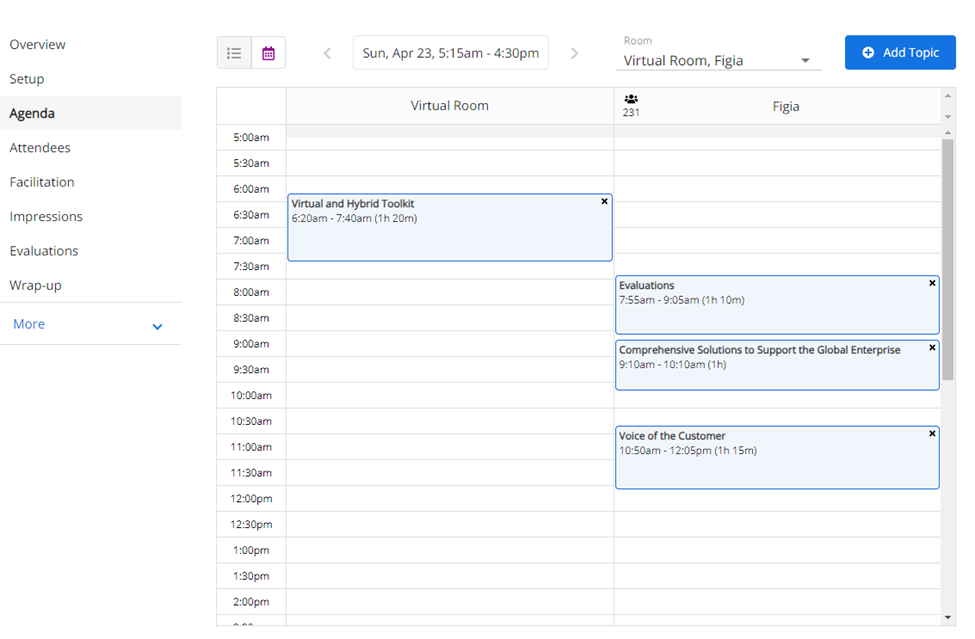 Figure 4. 2 rooms selected on the Agenda Calendar view