
- Overview
- Key Capabilities
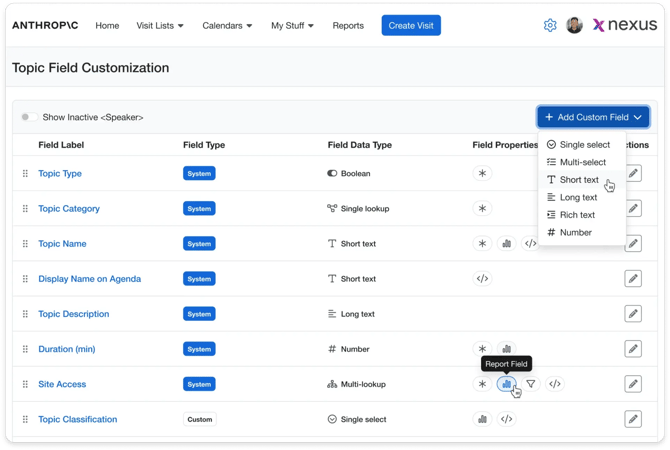
- Topic Field Customization
- Topic Name & Display Name on Agenda – Behavior
- Topic Fields – Structure
- Standard Topic Fields
- Standard Field Rules
- Field Properties
- Custom Topic Fields
- Supported Field Types
- Configuration & Administration
- Navigation
- How to Configure Topic Fields
- Managing Field Options
- Field Ordering
- Field Visibility
- User Roles / Permissions / Prerequisites
- Prerequisites
- How It Works – User Flow
- Access Configuration
- Configure Fields
- Add Custom Field
- Validate Topic Name Behavior
- Important Considerations & Limitations
What’s New
-
New Topic Field Customization screen under Admin Settings
-
Centralized management of all topic fields
-
Support for custom topic fields
-
Field-level configuration for Required, Reporting, and Template usage
-
Enhanced Topic Name display logic across agenda and exports
-
Clear handling of Display Name on Agenda vs Topic Name
-
Field ordering, inactive field management, and improved UI indicators
-
Search and Filtration in the topic list
Overview
Topic fields define how topic information is structured and displayed across the system.
Admins can:
-
View all fields in a centralized table
-
Identify system vs custom fields
-
Configure behavior and usage
-
Add new custom fields
-
Control how topic names appear in agenda outputs
Topic Name & Display Name on Agenda – Behavior
The system includes two related fields:
|
Field |
Purpose |
|---|---|
|
Topic Name |
Primary system-defined name of the topic |
|
Display Name on Agenda |
Optional override used for agenda presentation |
Display Logic
The system follows a controlled logic to determine what is shown in agendas and exports:
-
If Display Name on Agenda is populated
→ That value is shown in the agenda UI -
If Display Name on Agenda is empty
→ The system defaults to Topic Name -
For Agenda Exports (Download, Email, Link, Review)
→ The exported output always reflects the Topic Name as shown in the agenda
Key Scenarios
|
Scenario |
Input |
Output in Agenda |
Output in Export |
|---|---|---|---|
|
Display Name provided |
Topic Name = “AI Strategy” |
“AI Strategy – Executive Session” |
“AI Strategy – Executive Session” |
|
Display Name empty |
Topic Name = “AI Strategy” |
“AI Strategy” |
“AI Strategy” |
|
Display Name updated |
Display Name changed after creation |
Updated value reflected immediately |
Updated value reflected |
|
Export triggered |
Agenda contains topics |
Display logic applied |
Export matches agenda display |
Important Behavior
-
Topic Name remains the source-of-truth field
-
Display Name on Agenda acts as a presentation layer override
-
Exported agendas respect the final display logic applied in Agenda
-
No separate or conflicting naming is introduced in exports
Topic Fields – Structure
|
Column |
Description |
|---|---|
|
Field Name |
Name displayed to users |
|
Field Type |
System or Custom |
|
Field Data Type |
Text, Long Text, Numeric, Choice, Multiple Choice, Number |
|
Field Properties |
Required, Report, Parameter indicators, Filters |
System fields are clearly labeled and cannot be deleted or structurally modified.
Standard Topic Fields
Includes key system fields such as:
-
Topic Name
-
Display Name on Agenda
-
Topic Type
-
Topic Category
-
Topic Description
-
Duration
-
Site Access
-
Abstract
-
Hide on Agenda
-
Hide on Survey
-
Available to Account Manager
Standard Field Rules
-
Cannot be deleted
-
Cannot change data type
-
Can be renamed and reordered
-
Fully configurable for usage
-
Can be reordered
Field Properties
|
Property |
Description |
|---|---|
|
Required |
Field must be completed |
|
Show in Reports |
Available in reporting |
|
Use in Parameter |
Available in templates |
Icons and tooltips visually indicate each property.
Custom Topic Fields
Admins can create additional fields to capture business-specific data.
Supported Field Types
-
Single Select
-
Multi Select
-
Short Text
-
Long Text
-
Rich Text
-
Number
Configuration & Administration
Navigation
-
Settings → Topic Field Customization

How to Configure Topic Fields
-
Open Topic Field Customization
-
Review existing fields
-
Update labels, properties, and order
-
Configure field usage (Required, Report, Parameter)
-
Add custom fields if needed
-
Save changes

Managing Field Options
For select-type fields:
-
Add, edit, reorder, activate, or deactivate options

Field Ordering
-
Drag-and-drop to reorder fields
-
Order persists across the system
Field Visibility
|
State |
Behavior |
|---|---|
|
Active |
Visible and usable |
|
Inactive |
Hidden from new use, retained in system |
|
Show Inactive Fields |
Allows admin to view/reactivate fields |
User Roles / Permissions / Prerequisites
|
Role |
Access |
|---|---|
|
Admin |
Full configuration access |
|
Account Manager |
Uses configured fields |
Prerequisites
-
Admin access required
-
Field configuration should be completed before rollout
How It Works – User Flow
Access Configuration
-
Go to Settings
-
Click Topic Field Customization
Configure Fields
-
Review field list
-
Identify system vs custom fields
-
Update properties
-
Reorder fields
-
Save
Add Custom Field
-
Click Add Custom Field
-
Select type
-
Configure field
-
Save
Validate Topic Name Behavior
-
Create or edit a topic
-
Enter Topic Name
-
Optionally enter Display Name on Agenda
-
View topic in agenda
-
Export agenda and confirm displayed name
Important Considerations & Limitations
-
Topic Name is always required and acts as the base identifier
-
Display Name on Agenda is optional but controls presentation
-
System fields cannot be deleted and type cannot be changed
-
Inactive fields retain historical data
-
Only configured fields appear in reports/templates
FAQs
What is the difference between Topic Name and Display Name on Agenda?
Topic Name is the core system value. Display Name is an optional override used only for presentation in agenda views.
Which topic name appears in exports?
Exports reflect the name shown in the agenda after applying display logic.
What happens if Display Name is empty?
The system automatically uses Topic Name.
Can I remove Topic Name?
No, it is a required system field.
Can I rename these fields?
Yes, labels can be updated, but functionality remains unchanged.
Can I delete the custom fields that are being used in reports or email parameters?
No, the fields that are being used elsewhere cannot be deleted. The delete button is disabled for those fields. The admin when hovers over the delete link, can see at how many places it is being used.
Can I search through the filtered results?
Yes, once the filtered is applied, additional search can be performed through search input box to get the desired results.