
Overview
The Set Calendar Blocks for Attendees feature allows authorized users—including Event Coordinators, Admins, and designated Executive Admins—to create personal calendar blocks on behalf of internal attendees and other users.
This enhancement ensures:
-
Accurate reflection of executive and speaker availability
-
Reduced dependency on busy attendees updating their own schedules
-
Streamlined event preparation and conflict prevention
-
Better accuracy in booking, speaker assignment, and visit coordination
- Access & Permissions
- Who Can Use This Feature?
- Configuring Delegated Access (Admin Only)
- How to Add Calendar Blocks for Attendees
- Step-by-Step Instructions
- Using the Add Personal Block Modal
- Modal Fields
- Time Zone Support
- Calendar Invites (Outlook & Google)
- Supported Actions:
- Behavior:
- FAQs & Edge Cases
Key Capabilities
-
Delegate Access:
Users with approved delegation (e.g., Executive Assistants) can create blocks on behalf of internal attendees. -
Support for Attendee Profiles:
Blocks can be added for attendees, not only internal system users—ideal for executives, guest speakers, and VIPs. -
Calendar-Level Control:
Calendar blocks can be managed directly from weekly and monthly calendar views, mirroring system-wide scheduling interactions. -
Time Zone Selection:
A new time zone field is included in the Add Personal Block modal to ensure scheduling accuracy across global locations. -
External Calendar Sync:
Users can send Outlook or Google Calendar invites directly from the modal, keeping all parties aligned. -
Admin-Configured Delegation:
User Profile Settings allow Admins to assign or revoke permissions for “View Only” and “Speaker” types to manage others' calendars.
Access & Permissions
Who Can Use This Feature?
|
Role |
Ability |
|---|---|
|
Event Coordinators |
Create blocks for any other attendee or user |
|
Admins |
|
|
Executive Admins / Executive Assistants |
Manage calendar blocks (if access has been delegated by admin) |
|
View Only / Speaker Users |
|
Configuring Delegated Access (Admin Only)
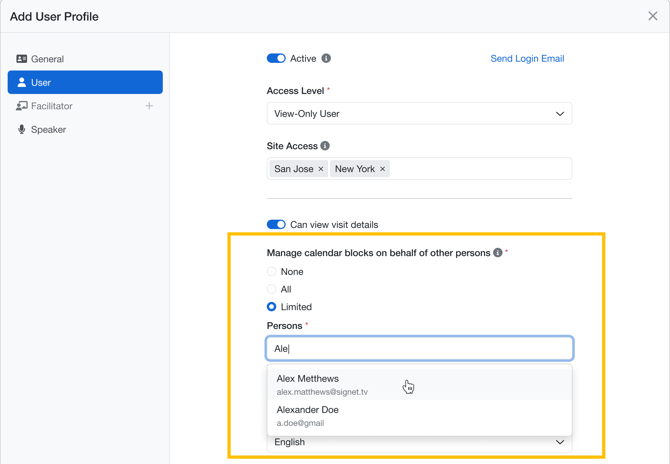
Admins can enable users (View-only users, Speakers) to manage calendar blocks on behalf of specific internal attendees.
Where:
User/ Discussion Leader Profile Settings → Edit/Add user profile→ Manage calendar blocks on behalf of other persons
Calendar Block Options Include:
-
None - User Cannot manage other attendee calendars
-
All - User can manage calendar blocks for ALL other users and persons
-
Limited - User can manage calendar blocks for specific people selected in the ‘persons’ pick list.
Delegation is attendee-specific. Admins must define access for each individual to maintain control and security.
How to Add Calendar Blocks for Attendees
Below is the standard workflow that applies across Monthly and Weekly Calendar views.
Step-by-Step Instructions
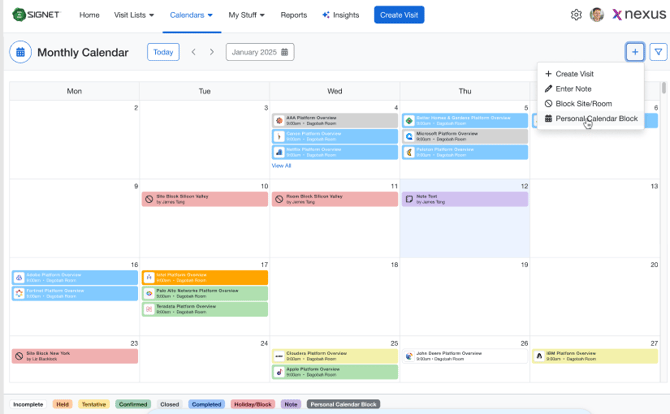
1. Open the Calendar View
Navigate to the Monthly or Weekly calendar. Click “Personal Calendar Block”
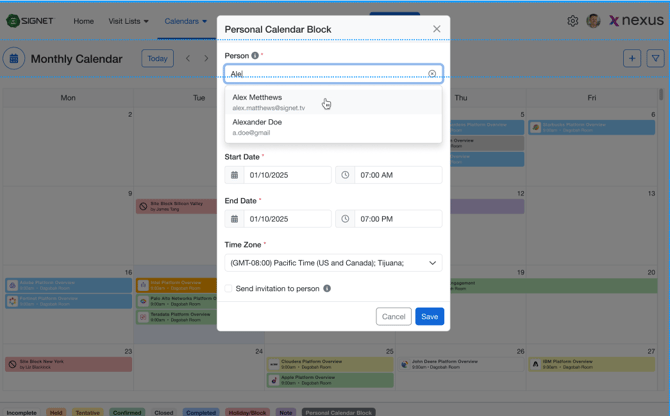
2. Select the Person you want to set the block for
Use the ‘Person’ search/select field to identify the individual for whom you want to create a block.
-
Delegated users will only see people they have permission to manage.
-
Admins/Coords will see all people
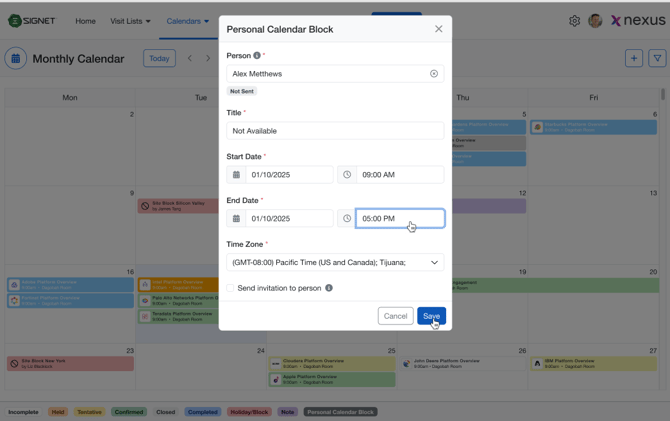
3. Enter Block Details
-
Start & End date and time
-
Time zone
-
Title (optional)
4. (Optional) Send Invitation to Person
If desired, check Send invite to send an Outlook or Google Calendar event to the person so that the block is synchronized with this outlook/Gmail calendar..
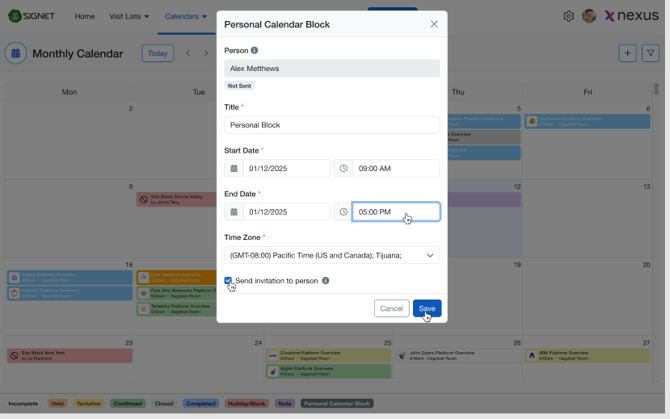
5. Save
Click Save to finalize the Block.
The block appears immediately on the following view:
-
In the attendee’s Weekly/Monthly Calendar
-
In the Participant Calendar for visits where they are selected
-
As unavailable time for speakers in Agenda builder, ensuring coordinators do not accidentally schedule them during blocked times
-
As restricted availability in Date & Time Selection modals when booking visits.
Using the Add Personal Block Modal
The modal supports enhanced configuration options.
Modal Fields
|
Field |
Description |
|---|---|
|
Attendee |
Auto-filled or selectable attendee name |
|
Time Zone |
New field supporting scheduling accuracy for global teams |
|
Start / End Time |
Define the duration of the block |
|
Purpose / Title |
Optional descriptor |
|
Notes |
Additional context for Admins or EAs |
|
Send Calendar Invite |
Enables syncing to external calendars |
Time Zone Support
-
Automatically defaults to the User’s Homesite Time Zone
-
Can be changed manually to make it easier to block times relevant to specific time-zones
Calendar Invites (Outlook & Google)
Users can send a calendar invite directly from the block modal.
Supported Actions:
-
Send an Outlook invite
-
Send a Google Calendar invite
Behavior:
-
The attendee receives a standard external calendar event
-
The block appears both in the system calendar and the external calendar
-
Updates to the block reflect as standard calendar updates when date/time changes are made to the block.
FAQs & Edge Cases
Can I create blocks for multiple attendees at once?
Not at this time—blocks must be created per attendee to ensure accuracy.
What if the attendee is not a system user?
You can still create blocks for them as long as they are added as an attendee profile.
Do blocks sync two-ways with Outlook/Google?
No.
Sync is one-way—from the Nexus --> Outlook/Google.
What happens if I lose delegated access?
You will no longer see or be able to modify that attendee’s calendar.