
NOTE: For the handshake procedure using a Connected App, please use this link.
Step 1: Create the Salesforce Integration User
Create a dedicated Salesforce user that Nexus will run as.
👉 Follow this guide: Salesforce Integration User Setup
Step 2: Create the External Client App for Nexus Integration
-
Go to Setup
-
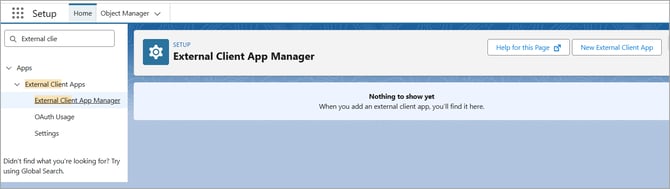
Search for External Client Apps
-
Open External Client App Manager
-
Click New External Client App
-
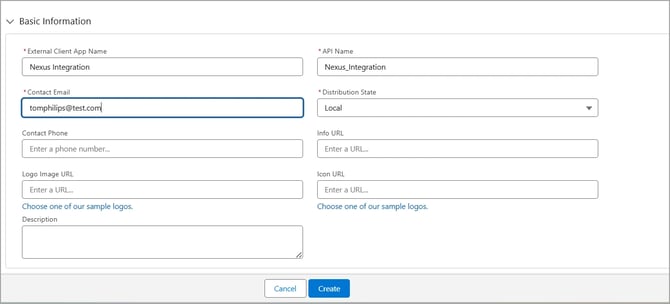
Enter the External Client App Name (example: Nexus Integration), Contact Email (valid email address) and Distribution State: ‘local’, API Name will auto-populate. Rest other information is optional. Hit ‘Create’.
Step 3: Configure OAuth Settings
Within the External Client App:
-
Expand OAuth Settings and check for ‘Enable OAuth’

-
In App Settings:
- Add Callback URLs
Add both of the following:https://w17.briefingedge.com/MVC2/Admin/SFDC/Authenticate?sfdcInstance=1
https://w17.briefingedge.com/MVC2/Account/OauthSuccessIf you have multiple Salesforce instances, confirm the correct sfdcInstance value with Nexus.
- Add Callback URLs
-
Add OAuth Scopes
- Add:
apiwebrefresh_token, offline_access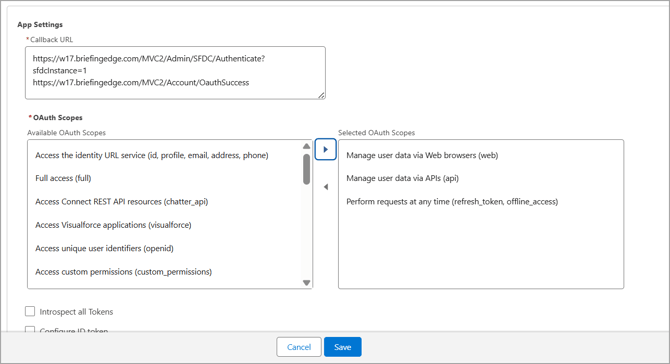
- Add:
-
In the Flow Enablement section, enable Client Credentials Flow
-
In Security section:
-
Disable ‘Require Proof Key for Code Exchange (PKCE) extension for Supported Authorization Flows’.
-
Disable ‘Require secret for Web Server Flow’.
-
Disable ‘Require secret for Refresh Token Flow’.
-
-
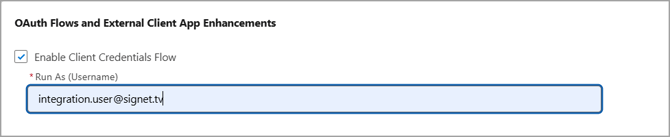
Set Run As User to the Salesforce Integration User created in Step 1
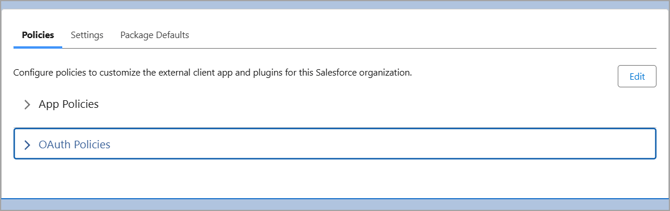
- Within External Client App: Edit ‘OAuth policies’
- Enable Client Credentials Flow
- Enter the Username of Salesforce Integration User created in Step 1
- Within External Client App: Edit ‘OAuth policies’
- Under App Authorization: ‘Refresh Token Policy’ and ‘IP Relaxation’ can be set.
-
Hit ‘Save’
Step 5: Retrieve Client ID and Client Secret
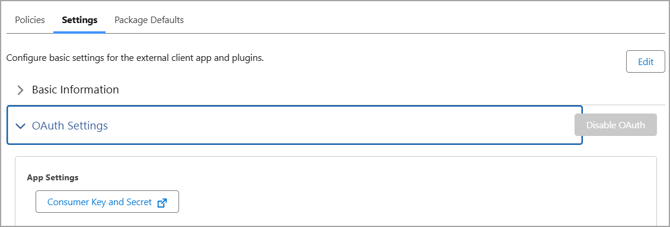
From the External Client App, under OAuth Settings retrieve:
-
Consumer Key
-
Consumer Secret
Step 6: Retrieve Org Details
-
Go to Setup → Company Information
-
Copy:
-
Salesforce Organization ID
-
-
Copy your My Domain / Custom Domain
(example:mydomain.my.salesforce.com)
Step 7: (Optional) Validate Credentials
You can validate the connection using a token request through Postman.
POST
https://<your-custom-domain>/services/oauth2/token
Body (x-www-form-urlencoded):
grant_type=client_credentials
client_id=<Consumer Key>
client_secret=<Consumer Secret>
A successful response returns an access_token.

Step 8: Send Details to Nexus
Provide Nexus with:
-
Consumer Key
-
Consumer Secret
-
Salesforce Org ID
-
Salesforce Custom Domain (example: mydomain.my.salesforce.com)
Step 9: Almost Done!
The Salesforce team will be informed once the Nexus team completes the integration.