
The User can directly assign a chapter to the On-Site playbacks from the Chapter Details page.
The following products are available:
- Media Channel
- Room Warmer
- Virtual Warmer
- Welcome Screen
The User should also specify the Media Channel Endpoint(s) for the Media Channel.
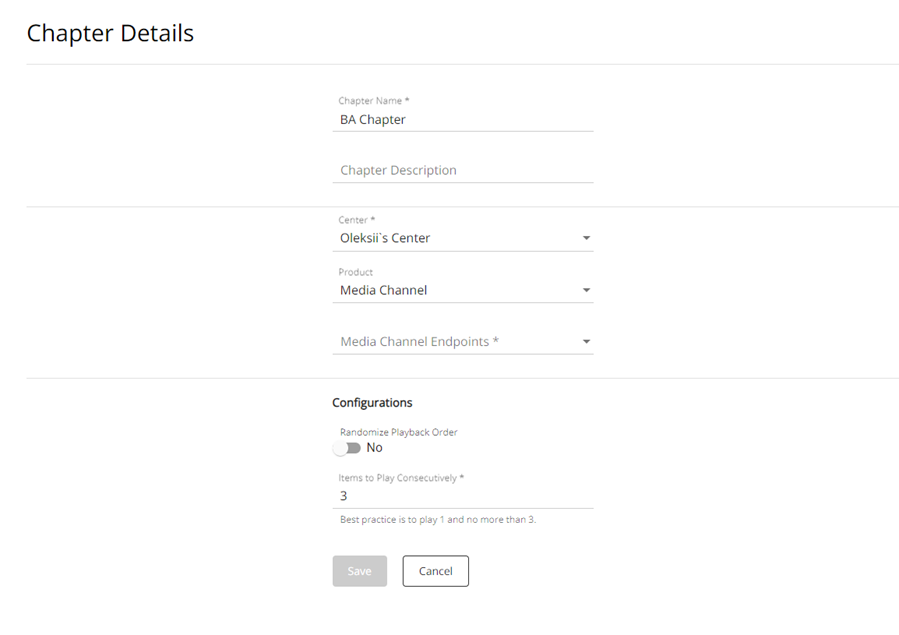
Figure 1. Chapter - Chapter Details
The user can also remove the product from the product drop-down, which will automatically remove this chapter for the product playback regarding the center.
On-Site Channel – Playback – Add Chapter
The user can also add a Chapter to the On-Site Channel (WS, RW, MC) playback.
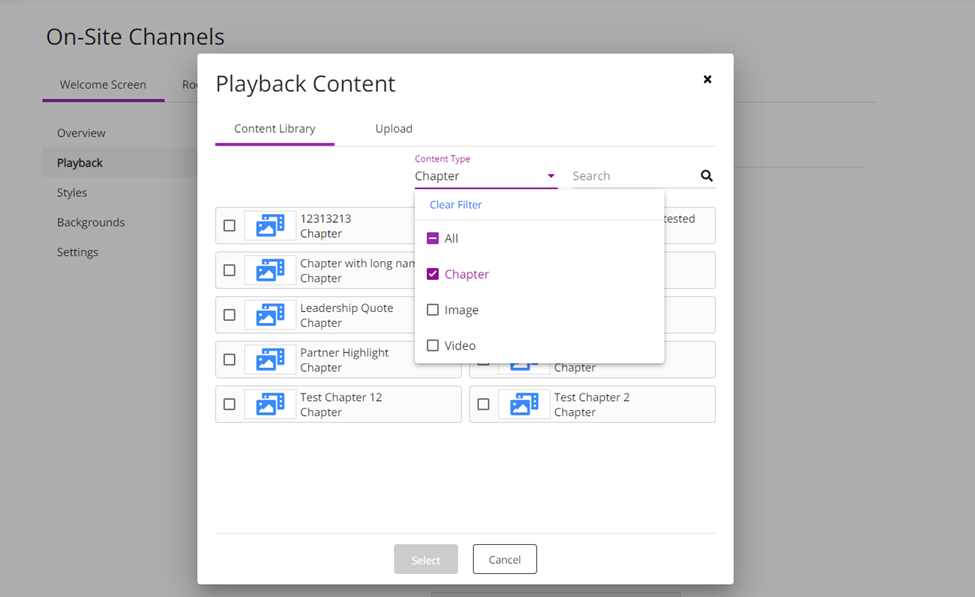 Figure 2. Playback - Add Chapter
“Chapter” shall be added as an option to filter in the “Content Type” field.
For the “All” filter value, all chapters & media will be sorted alphabetically by media & chapter name.
|
Center value |
Playback tab |
|
· Default Settings |
· The “Content Library” list will contain Chapters available for all centers (Center Access - ‘All’) |
|
· Center level |
· User can select the needed center (for which the product has been assigned) from the drop-down · The “Content Library” list will contain chapters available only for the center selected from the drop-down |
The User can add the Chapter more than one time. The User can remove the chapter from the On-Site Channel Playback by clicking the “X” button. The User can change the order of the chapters by drag & drop them.
Chapters in the Welcome Screen playback
After adding a chapter to the On-Site playback, it will be shown in the player rotation.
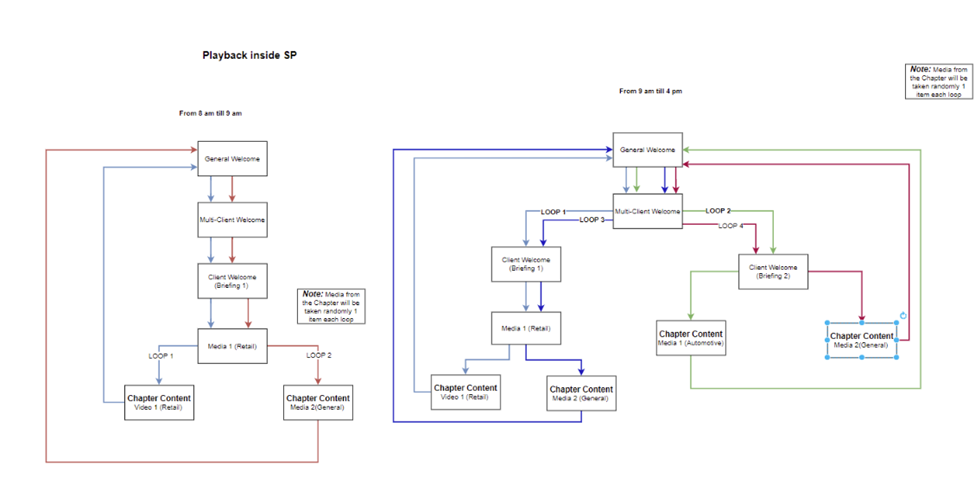
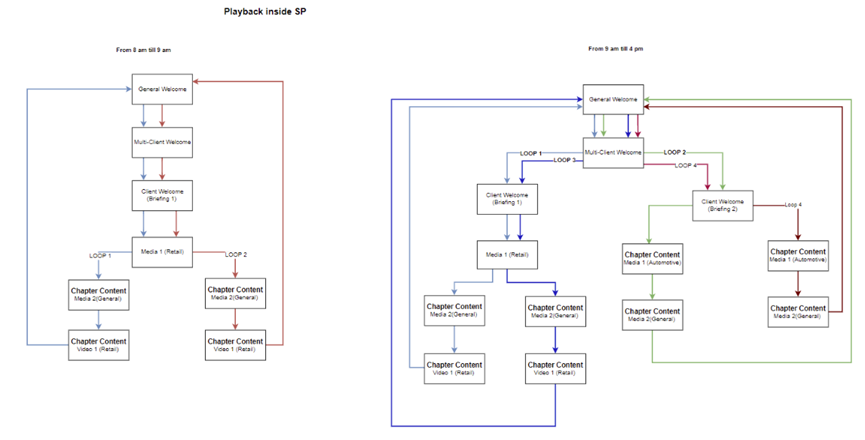
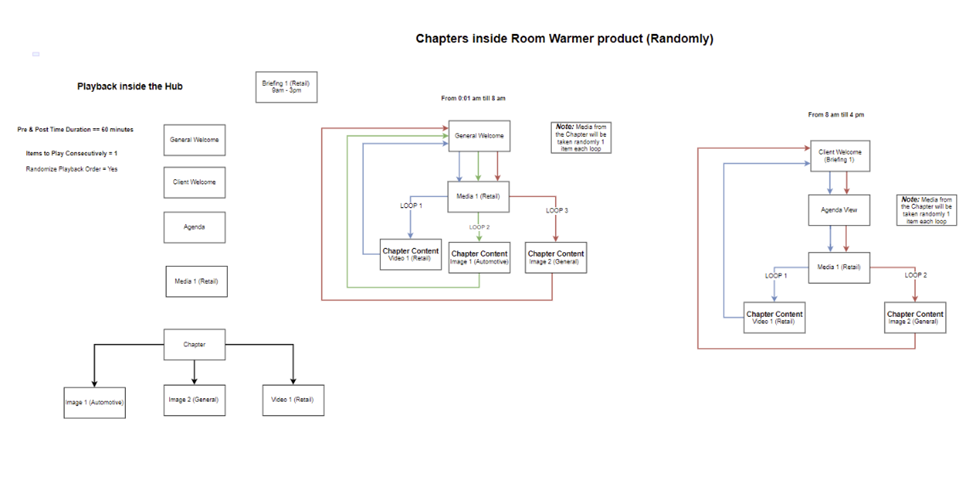
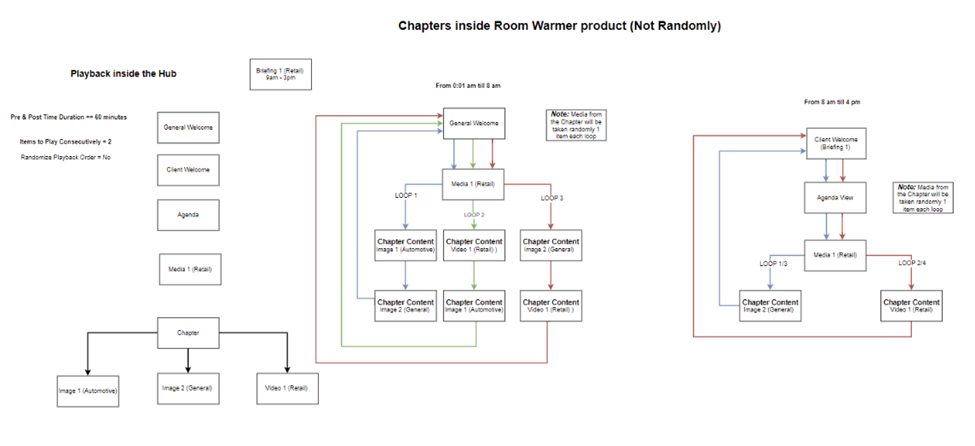
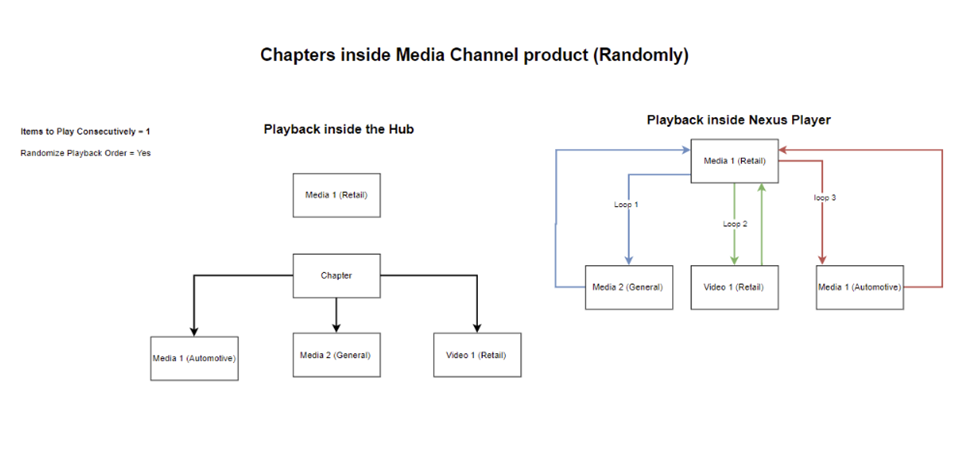
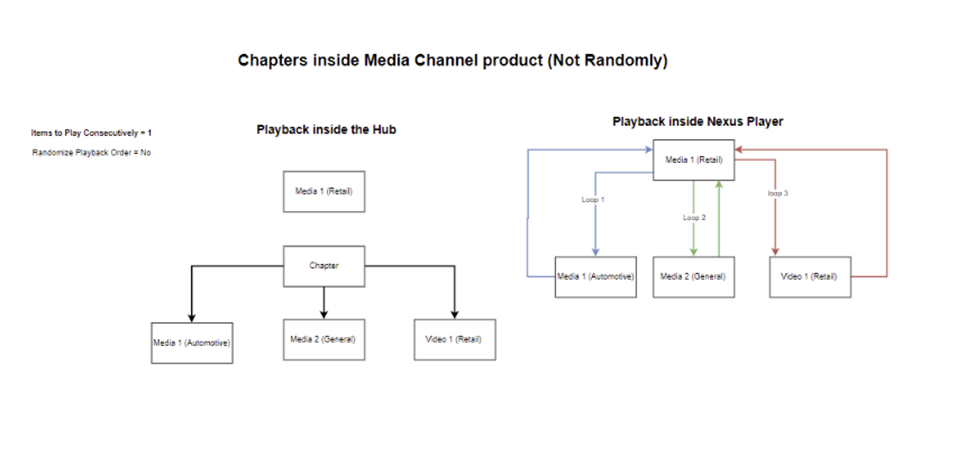
Media will be displayed one by one or randomly based on the “Randomize Playback Order” value from the Chapter Details page.
Based on the Chapter Details “Items to Play Consecutively” value, one or more items will be shown each time. Media from the chapter will be shown based on its center.
The duration of the media (image) will be taken from the On-Site Channel - Settings - View Duration (sec) field. The duration of the MC images is 20 seconds. The video will play its entire duration.
WS - No clients are in the Center.
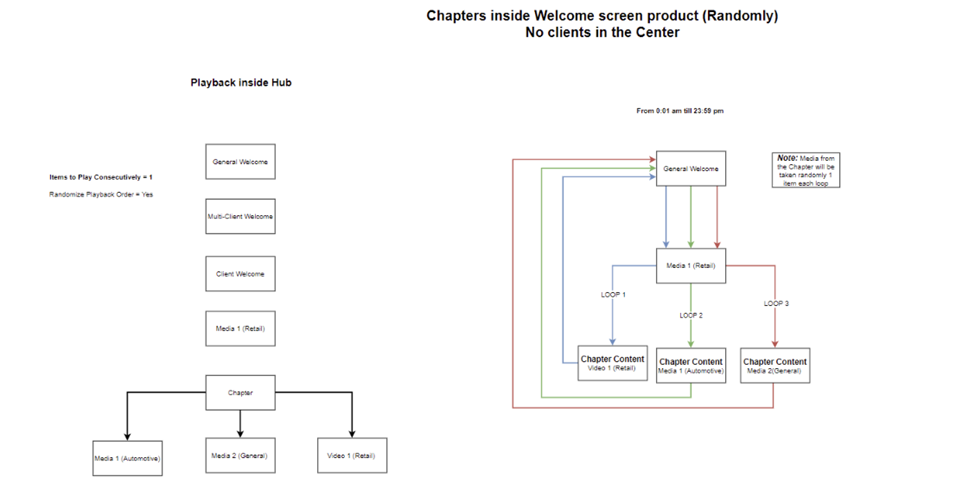
WS - One or more than one client(s) in the Center (Media are shown randomly)
Schema 1:
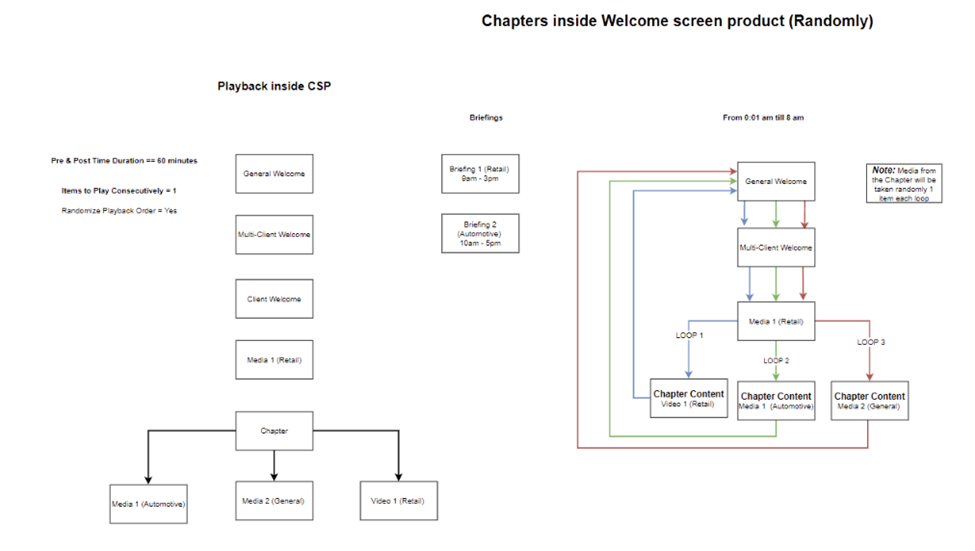
Schema 2:
WS - One or more than one client(s) in the Center (Media are shown not randomly)
Schema 1:
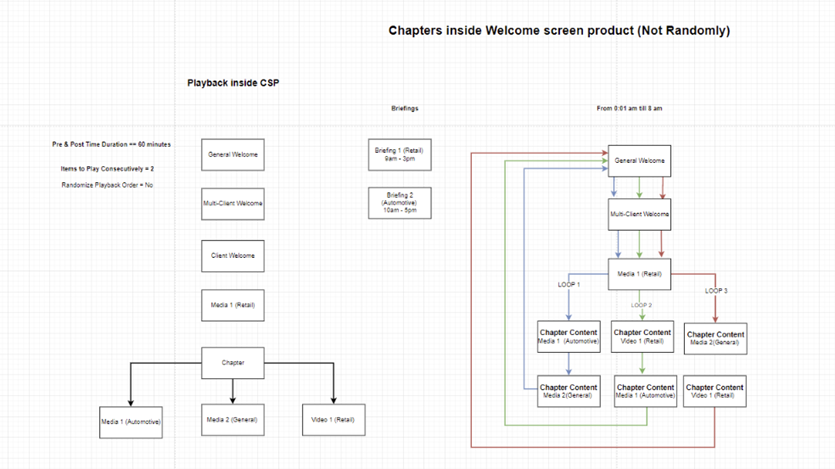
Schema 2:
RW - No clients are in the Center
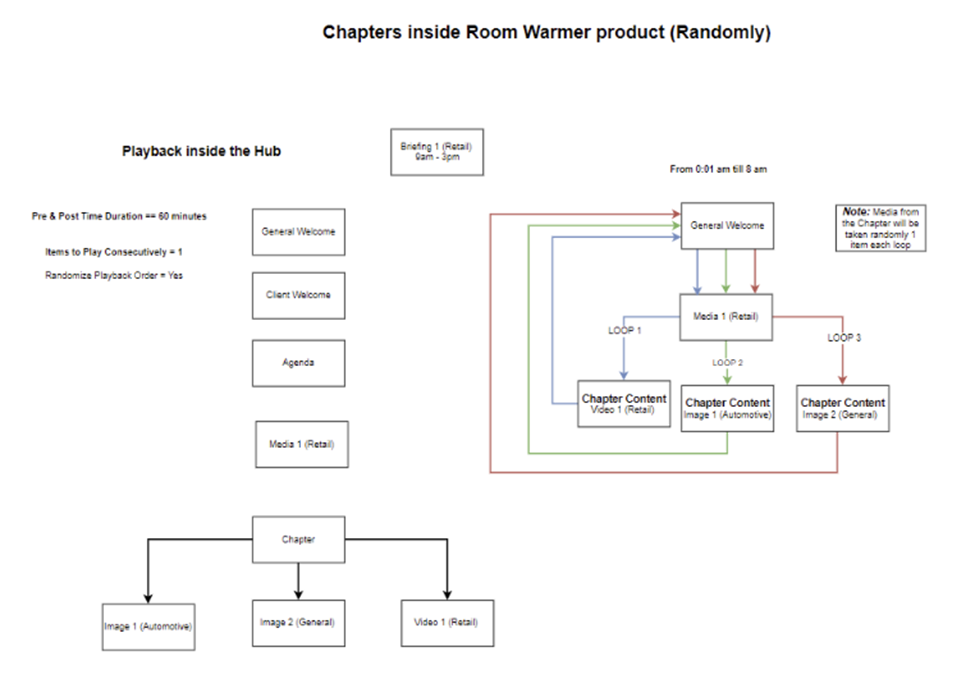
RW - One client in the Center (Media are shown randomly)
RW - One or more than one client(s) in the Center (Media are shown not randomly)
MC - Media are shown randomly
MC - Media are shown not randomly
External users will have the same functionality available.