
Functional Summary
Auto Confirm Visits enables organizations to pre-approve specific Visit Types so that qualifying visits:
-
Do not wait for manual review
-
Are confirmed immediately upon submission
-
Follow the same lifecycle, notifications, and workflows as manually confirmed visits
This feature is particularly useful for routine or low-risk visit types that do not require additional approvals.
Key Capabilities
-
Configure Auto-Confirm at the Visit Type level
-
Automatically confirm visits at submission time
-
Send standard Acknowledgement and Confirmation emails automatically
-
Respect final Visit Type selection at submission
-
Prevent duplicate visit creation or confirmation
-
Maintain audit consistency by passing through Tentative status internally
Auto Confirm Visits – Overview
Auto Confirm Visits works by evaluating the final Visit Type selected at the time of submission.
If the selected Visit Type has Auto-Confirm enabled:
-
The visit is automatically confirmed
-
Engagement Manager approval is skipped
-
All standard confirmation workflows continue to apply
If Auto-Confirm is not enabled, the visit follows the normal approval process.
How Auto Confirm Visits Works
From a user perspective, the process is seamless:
-
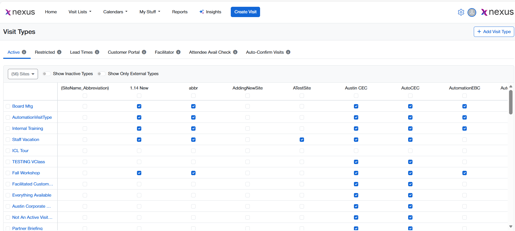
Configure Auto-Confirm at the Visit Type level
-
A requester creates a new visit.
-
The requester selects a Visit Type.
-
If that Visit Type has Auto-Confirm enabled, the system:
-
Submits the visit
-
Internally transitions through Tentative
-
Confirms the visit immediately
-
-
The requester receives confirmation without waiting for manual review.
Important: Auto-confirmation is evaluated only at submission time, not when the Visit Type is selected earlier in the form.
Configuration & Administration
Who Can Configure Auto-Confirm
-
Administrators
-
BES Admins
Where to Configure
-
Settings → Visit Types → Auto-Confirm Visit Tab
Configuration Details
|
Setting |
Description |
|---|---|
|
Auto-Confirm checkbox |
Enables or disables auto-confirmation for a Visit Type |
|
Default value |
OFF for all existing Visit Types |
|
Inactive Visit Types |
Display Auto-Confirm as read-only (cannot be edited) |
User Flow – Step-by-Step
Creating an Auto-Confirmed Visit
-
Navigate to Create New Visit
-
Complete all required visit details
-
Select a Visit Type with Auto-Confirm enabled
-
Review the visit details
-
Click Submit
Result:
-
Visit is automatically confirmed
-
No manual approval required
-
Confirmation emails are sent immediately
Notifications & System Behavior
When a visit is auto-confirmed:
-
Acknowledgement Email is sent immediately upon submission
-
Confirmation Email is sent immediately after confirmation
-
Emails use the same templates as manually confirmed visits
-
Emails are always sent in this order:
-
Acknowledgement
-
Confirmation
-
Email Reliability
-
If email delivery fails:
-
The visit remains Confirmed
-
The system logs the failure
-
Standard email retry policies apply
-
-
Duplicate emails are prevented even if submit is clicked multiple times
FAQs
Q: Does Auto-Confirm skip the Tentative state entirely?
A: No. The system still passes through Tentative internally for audit consistency, but this happens automatically.
Q: What if a Visit Type is changed multiple times before submission?
A: Only the final Visit Type selected at submission is evaluated.
Q: Will existing visits be auto-confirmed if Auto-Confirm is enabled later?
A: No. Auto-Confirm only applies at the time of submission.
Q: Are auto-confirmed visits treated differently in reports or workflows?
A: No. They are treated the same as manually confirmed visits.