
The purpose of this enhancement is to improve the usability, accuracy, and performance of attendee scheduling within the Event Visit workflow for Single Day Visits. This empowers Event Managers with visibility into individual attendee availability and enables efficient visit slot management, especially when handling large-scale visits or high-demand days.
-
- Attendee Availability Toggle
- Associated Attendee Management
- Site-Based Configuration
- Visit Type Setting
- Availability Grid Display
- Additional Features
- Real-Time Conflict Detection
- Session Persistence
- Calendar Lock
- Search and Filters
- Individual Search
- Edge Case Handling
Attendee Availability Toggle
A new toggle is introduced in the visit scheduling interface:
-
Toggle is off by default.
-
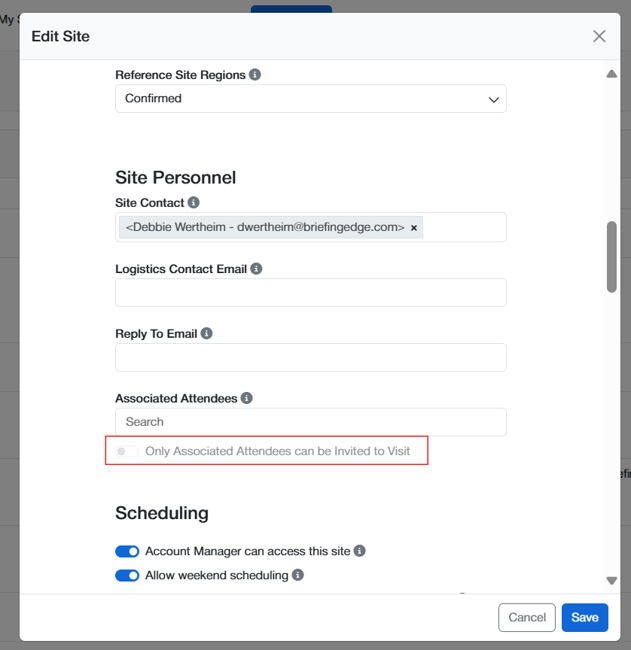
Toggle is on, Only associated attendees can be invited to visit
Behavior:
-
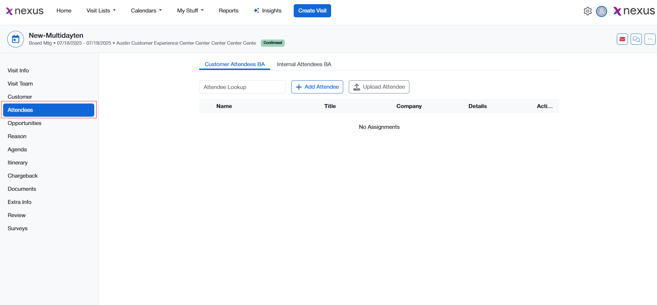
When enabled, the system will let site-mapped (associated) attendees can be invited to the visit in the “Attendees section”
-
When disabled all other attendees can be added to the visit
-
Loading indicators are shown while retrieving data.
Associated Attendee Management
-
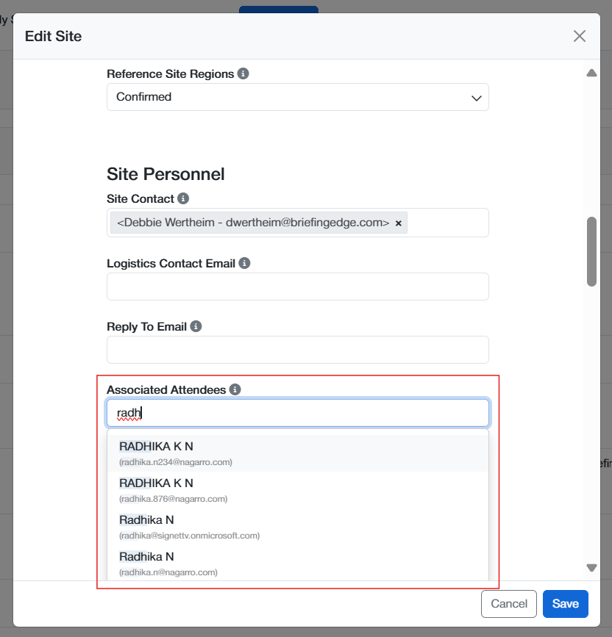
Associated Attendees can be searched and added to the visit.
-
Attendees not mapped to the site will not appear in the list or search in “Visit Form”.
-
Availability is based on individual Briefing Edge calendars and personal blocks.
-
Mapped attendees' availability will be considered when scheduling visits.
Site-Based Configuration
-
Attendee availability visibility is site-specific.
-
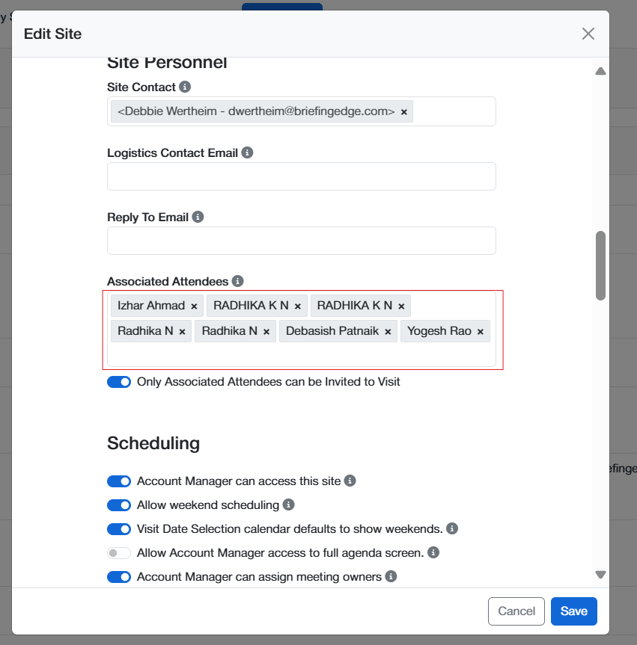
Admins can add or remove attendees at the site level.
-
Only those attendees that are added to the site will be shown in Attendee filter section
-
At least one attendee must be mapped to the site to enable this functionality.
-
These attendees' availability will be checked when scheduling visits.
Visit Type Setting
-
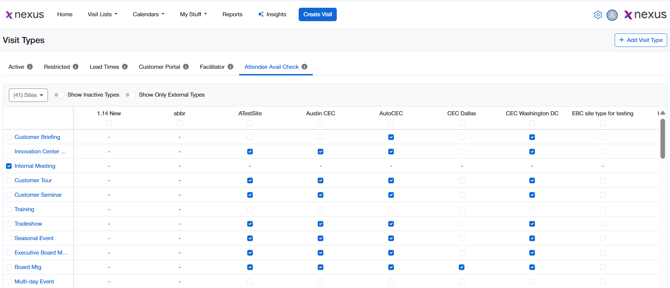
The feature is also “Visit Type” specific.
-
The "Attendee Avail Check" must be checked for each Visit Type.
-
If this checkbox is not selected for the Visit Type, the attendee availability section will not be shown, even if attendees are mapped.
Availability Grid Display
-
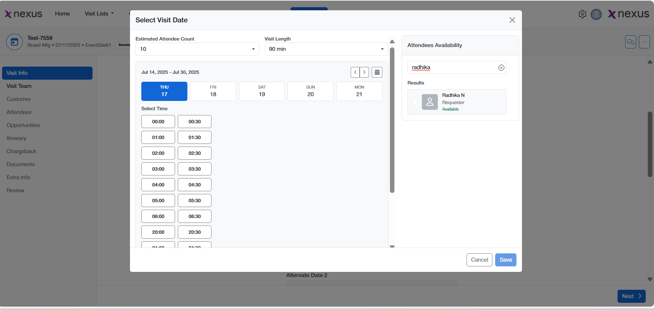
Grid shows a list of invited attendees along the Y-axis and time slots on the X-axis.
-
Availability is shown in color blocks:
-
Green – Available
-
Red – Unavailable
-
Additional Features
-
Only associated attendees will be shown.
-
If a predate is selected (out of event date range), it is shown only if at least one mapped attendee is available that day.
-
Selected attendees will be added to the visit, and their calendar will be locked for that visit day.
-
Attendees marked Unavailable cannot be moved to the selected list.
Real-Time Conflict Detection
-
When a user tries to assign a visit time overlapping with an attendee's unavailability:
-
That attendee will be marked as Unavailable.
-
They cannot be moved to the Selected list for that visit.
-
If a user selects a past date, availability will default to Available.
-
No additional availability checks are made.
-
Session Persistence
-
Filter and view selections persist during the current session.
-
They reset upon logout or timeout.
Calendar Lock
-
Once attendees are selected and visit is saved, their calendars are locked for that day and time.
Search and Filters
Individual Search
-
Search by Name or Email.
-
Helps reduce clutter and focus on high-priority attendees.
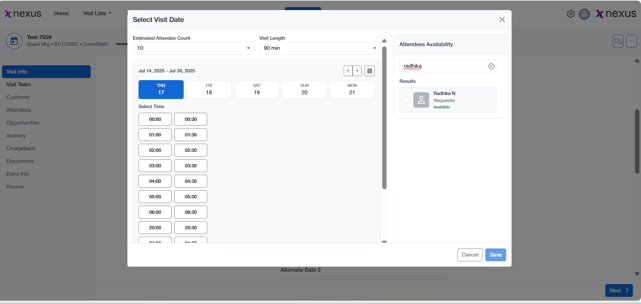
Purpose: Improve usability and reduce clutter by focusing on priority attendees.
Edge Case Handling
|
Condition |
Behavior |
|---|---|
|
Visit scheduled in the past |
Availability defaults to "Available" |
|
No availability data for user |
Treated as unknown; no color shown |
|
More than 100 attendees invited |
Pagination and lazy loading applied |
|
System timeout or API failure |
Grid remains hidden; user notified |