
Release: Q4 2025
Platforms: Microsoft Dynamics 365
Overview
The Closed Opportunity Date Filter enhances how Opportunities are surfaced inside the Nexus Enablement Hub when users create an Engagement Requests. This feature introduces configurable controls that allow MS Dynamics Admins to decide whether Closed Opportunities should be included, and how recently they must have closed to qualify as valid options.
Objectives
-
Provide Dynamics Admins control over visibility of Closed Opportunities.
-
Ensure users can only attach Engagement Requests to recent, meaningful Opportunities.
-
Improve alignment between Dynamics data governance and Nexus Engagement workflows.
-
Maintain a clean, relevant Opportunity list across all Opportunity-dependent actions.
Table of Contents
-
- Overview
- Objectives
- Functional Summary
- Key Highlights
- Configuration Details
- New Setting: Include Closed Opportunities
- Feature Behavior
- When “Include Closed Opportunities” = OFF
- When “Include Closed Opportunities” = ON
- Impacted Areas
- System Preconditions
- How to Configure the Opportunity Date Filter
- Step-by-Step Guide
Functional Summary
Key Highlights
-
A new toggle “Include Closed Opportunities” is added to the Nexus Configuration settings.
-
When enabled, Admins can define Opps Closed Within Last ‘X’ Days.
-
Users will now only see when toggle is enabled:
-
Open Opportunities
-
Closed Opportunities whose Close Date is within the last X days
-
-
Closed Opportunities outside the allowed timeframe are excluded from:
-
Opportunity Search
-
-
Applies only to the Nexus Enablement Hub (per-app scope).
-
Admins can change the toggle and the X-days value at any time.
Configuration Details
New Setting: Include Closed Opportunities
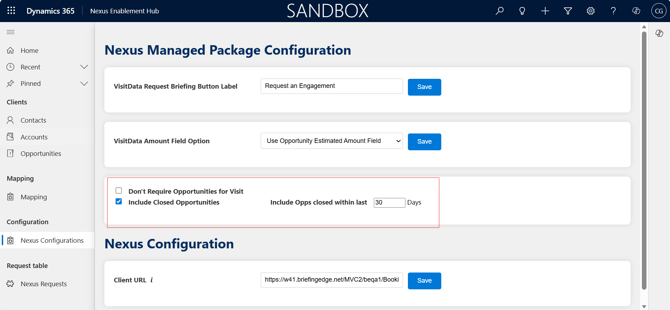
A new toggle has been added to the Dynamics App → Configuration → Nexus Configuration section.
|
Setting |
Description |
|---|---|
|
Include Closed Opportunities |
Enables or disables visibility of Closed Opportunities. Default: OFF |
|
Include Opps Closed Within Last ‘X’ Days |
Visible only when toggle = ON. Accepts any positive integer. |
Feature Behavior
When “Include Closed Opportunities” = OFF
Only Open Opportunities appear across all Opportunity selection workflows.
When “Include Closed Opportunities” = ON
The system will show:
-
Open Opportunities
-
Closed Opportunities where:
Closed Date ≥ (Today – X days)
Closed Opportunities falling outside the configured X-days window will not appear.
Impacted Areas
|
Area |
Visibility Rules |
|---|---|
|
Opportunity Search |
Open Opps + Closed Opps within X days |
|
Visit → Opportunities |
Same filtering applies |
System Preconditions
Before enabling the Closed Opportunity filter, ensure the following components are installed and configured:
-
Power Apps access with latest solutions imported
-
MS Dynamics App installed
-
Nexus Enablement Hub installed
-
Engagement Connector installed
-
Mapping Page configured
-
Configuration Page configured
How to Configure the Opportunity Date Filter
Step-by-Step Guide
-
Navigate to Power Apps → Dynamics App → Configuration.
-
Open the Nexus Configuration section.
-
Locate the toggle Include Closed Opportunities.
-
Set toggle to ON if Closed Opportunities should be included.
-
Enter the number of days in Opps Closed Within Last 'X' Days.
-
Save changes.
"Example Configuration Scenario"
Scenario: A Dynamics Admin wants users to see Closed Opportunities that closed within the last 60 days.
Steps:
-
Set Include Closed Opportunities = ON
-
Enter 60 in the X-days field
-
Save
Result:
All Open and Closed Opportunities with a Closed Date within the past 60 days will appear.