
- Overview
- What’s New
- Functional Summary
- Key Capabilities
- Dynamic Speaker Profile & Management Enhancements – Overview
- Configuration & Administration
- Admin Navigation
- Standard Speaker Fields
- Supported Custom Field Types
- Field Settings
- How to Configure Speaker Fields
- User Roles / Permissions / Prerequisites
- Prerequisites
- How It Works / User Flow – Step-by-Step
- 1. Manage Speakers in Speaker Administration
- 2. Create a New Speaker
- 3. Edit Speaker Details
- 4. Find and Assign Speakers in Agenda
- 5. View Speaker Profiles and Hover Preview
- Speaker Metrics
- 6. Use Speaker Fields in Reports and Invitation Templates
- Reports
- Speaker Invitation Templates
- Important Considerations & Limitations
What’s New
-
New Speaker Field Customization screen for standard and custom speaker fields
-
Central option management for standard speaker fields such as Speaker Class, Fluent Languages, and Speaker Department
-
Dedicated Speaker Administration list with search, status filter, dynamic filters, and configurable columns
-
Single Add Speaker / Edit Speaker modal that combines person details and speaker details
-
Ability to create a speaker directly from the Agenda workflow
-
Read-only Speaker Profile Overview and Speaker Hover Card
-
Clear speaker status badges showing whether a speaker can be assigned
-
Role-based Speaker Management Access
-
Speaker fields available in reports and speaker invitation templates when enabled by configuration
Functional Summary
Admins configure speaker fields once, and those settings now drive how speaker information appears throughout the system. This includes the speaker administration list, speaker create/edit screens, profile overview screens, agenda speaker selection, hover previews, reporting, and invitation content.
Users with access can search for speakers, filter results, review speaker details, create new speakers, edit existing speakers, and assign speakers to agenda items. The system also helps prevent duplicate records by checking email addresses and guiding users to reuse existing profiles where appropriate.
Key Capabilities
-
Central speaker field setup so standard and custom speaker fields are managed in one place
-
Managed option lists for option-based fields, including active/inactive control
-
Dedicated speaker workspace for searching, reviewing, and maintaining speaker records
-
Unified create and edit experience combining person and speaker information in one modal
-
Agenda selection enhancements for faster search, filtering, preview, and assignment
-
Profile overview and hover preview with consistent speaker details and metrics
-
Role-based permissions controlling who can view, create, edit, or assign speakers
-
Reporting and email support for approved speaker fields
Dynamic Speaker Profile & Management Enhancements – Overview
|
Area |
What this means for users |
|---|---|
|
Speaker data setup |
Admins control which speaker fields are available, required, reportable, filterable, and available in invitations |
|
Speaker records |
Person details and speaker details are managed together, reducing duplicate data entry |
|
Speaker selection |
Users can search, filter, preview, create, or assign speakers without leaving the flow they are working in |
|
Profile experience |
Speaker details are shown consistently in list view, profile overview, hover preview, and edit screens |
|
Governance |
Access is controlled by role, with separate view and edit experiences |
|
Reporting and invitations |
Approved speaker fields can be reused in reports and speaker invitation templates |
Configuration & Administration
Admin Navigation
Admins can access the new and updated speaker configuration areas from the following locations:
-
Administration Menu > User & Presenter Profiles > Speaker Field Customization
-
Global Settings > Speaker Management Access
-
Settings > User & Presenter Profiles > Speaker Administration
-
Administration Menu > Global Settings > Email Invitation Template for speaker invitation placeholders
-
Reports for reportable speaker fields
Standard Speaker Fields
The following system fields are available as part of speaker management.
|
Standard Field |
Type |
Notes |
|---|---|---|
|
Speaker Class |
Single select |
System field with centrally managed options |
|
Fluent Languages |
Multi-select |
Centrally managed option list; speakers can have multiple languages |
|
Speaker Department |
Single select |
Available, but disabled by default |
|
Linked Topics |
Multi-lookup |
Uses agenda topics; does not use manual option management |
Standard speaker fields remain system-defined. They can be relabeled, reordered, and configured for use, but they cannot be deleted and their field type cannot be changed.
Supported Custom Field Types
Admins can add custom speaker fields using these field types:
-
Single select
-
Multi-select
-
Text
-
Long text
-
Rich text
-
Number
Field Settings
|
Setting |
Description |
|---|---|
|
Required |
The field must be completed before the speaker record can be saved |
|
Optional |
The field can be left blank |
|
Inactive / Not Used |
The field is hidden from new use, but the configuration and historical data remain stored |
|
Filter |
Makes the field available in More Filters where that field type is supported |
|
Report Field |
Makes the field available for new report setup |
|
Email Template Parameter |
Makes the field available as a speaker placeholder in the speaker invitation template |
|
Sort Order |
Controls the display order of fields across speaker screens |
Only single-select and multi-select fields can be used as filters.
How to Configure Speaker Fields
-
Open Speaker Field Customization.
-
Review the standard speaker fields and update labels, help text, order, and usage settings as needed.
-
For Speaker Class, Fluent Languages, and Speaker Department, open the option management area to add, reorder, rename, activate, or deactivate options.
-
Add any required custom speaker fields.
-
For single-select or multi-select custom fields, define the available options.
-
Turn on Filter, Report Field, or Email Template Parameter only where needed.
-
Use Show Inactive Fields when you need to review or reactivate fields that are no longer active.
-
Save Speaker Management Access by role so the correct users can see or maintain speakers.
Screenshot: [Speaker Field Customization screen showing standard fields, custom fields, Show Inactive Fields, and the Add Custom Field action]
User Roles / Permissions / Prerequisites
Admin access is always available. Non-admin access is controlled through Speaker Management Access and applies immediately after it is saved.
|
Access Level |
What Users Can Do |
|---|---|
|
No Access |
Speakers are hidden in navigation and the user cannot open speaker screens |
|
Read Only |
Users can open Speaker Administration, search, filter, and view speaker profiles |
|
Edit |
Users can view, create, edit, and assign speakers where the workflow allows it |
|
Admin |
Full access to speaker configuration and speaker management |
Prerequisites
-
Speaker fields should be configured before users begin maintaining speaker records.
-
Speaker Management Access should be reviewed before rollout.
-
Person fields shown in Add/Edit Speaker follow existing User Form Customization rules.
-
For agenda assignment, an existing visit and agenda item must already exist.
How It Works / User Flow – Step-by-Step
1. Manage Speakers in Speaker Administration
-
Open Speaker Administration from the navigation menu.
-
Use the search box to find speakers by name or email.
-
Use the Status filter to switch between All, Active, and Inactive speakers.
-
Open More Filters to filter by eligible speaker fields.
-
Use the column settings option to show or hide additional columns.
-
Click a speaker name to open the read-only profile overview.
-
If you have edit access, use + Add Speaker or Edit Profile as needed.
The speaker list combines active person fields and active speaker fields. The Name column is always shown first and cannot be hidden or reordered.
Screenshot: [Speaker Administration list showing search, status filter, More Filters, column layout settings, and Add Speaker]
2. Create a New Speaker
Users with create rights can create a speaker from Speaker Administration or directly from the Agenda selection flow.
-
Click + Add Speaker or + Create New Speaker.
-
Complete the person details section.
-
Complete the speaker details section.
-
Save the record.
The system uses the email address to prevent duplicate speaker creation.
|
Email Result |
System Behavior |
|---|---|
|
Email does not exist in the system |
A new person profile and a new speaker profile are created |
|
Email matches an existing person, but no speaker exists |
The user is prompted to reuse that person profile and create a speaker linked to it |
|
Email matches an existing speaker |
Duplicate creation is prevented; in Agenda, the user can assign the existing speaker instead of creating a new one |
If the email belongs to an inactive person who does not yet have a speaker profile, the system can prompt the user to activate that person and continue. This helps preserve existing data rather than creating duplicates.
When a speaker is created from Agenda, the user is returned to the selection flow and can continue assigning the speaker immediately.
Screenshot: [Add Speaker modal showing person information, speaker profile fields, and example duplicate-email popup]
3. Edit Speaker Details
-
Open a speaker profile from the list or profile overview.
-
Select Edit Profile if you have edit access.
-
Update person details and speaker details in the same modal.
-
Save the changes.
If the email is changed to an email address that already exists in the system, the update is blocked. This prevents an existing speaker from being relinked incorrectly to another person profile.
4. Find and Assign Speakers in Agenda
-
Open a visit and go to the relevant Topic or Meal.
-
Open the Speakers / Discussion Leaders section.
-
Review the initial results.
-
Search for speakers as needed.
-
Use More Filters to narrow the list.
-
Hover over a speaker avatar to preview profile details.
-
Select the required speakers and save the agenda item.
By default, the Agenda speaker selection view first shows speakers already linked to the current topic. If the user applies filters or searches, the result list updates accordingly. Selecting Clear All returns the list to the default topic-linked view.
The Linked Topics field can be used in other areas where supported, but it is intentionally hidden from Agenda > More Filters to keep topic assignment focused and avoid circular filtering.
Screenshot: [Agenda speaker selection modal showing search, More Filters, results, selected speakers, and Create New Speaker entry point]
5. View Speaker Profiles and Hover Preview
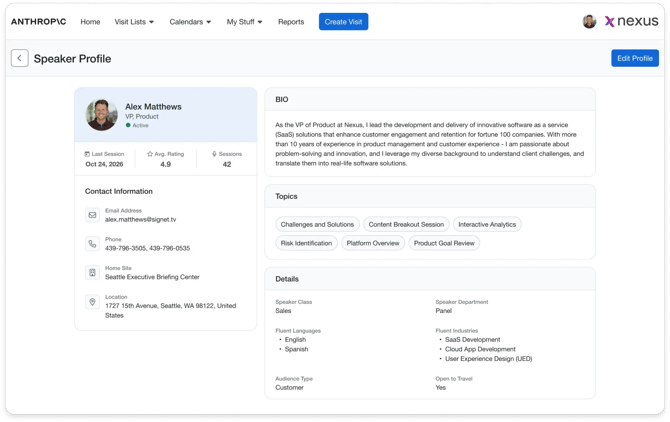
The new profile experience gives users a read-only view of speaker information before they decide whether to assign or edit a speaker.
Speaker Profile Overview includes:
-
Speaker identity and contact details
-
Bio
-
Linked topics
-
Standard and custom speaker fields
-
Status badge
-
Speaker metrics
Speaker Hover Card provides a quick preview directly from agenda-related screens and includes a View Profile action for deeper review.
Long bios are shortened in the hover card for a cleaner preview, while the full overview screen provides the complete read-only profile.
Speaker Metrics
|
Metric |
What It Shows |
|---|---|
|
Last Session |
The most recent completed or closed agenda date where the speaker participated and did not decline |
|
Average Rating |
The speaker’s eligible post-visit survey rating, normalized across rating scales |
|
Sessions |
The total number of qualifying agenda sessions across historical data |
Screenshot: [Speaker Profile Overview showing status badge, metrics, contact details, bio, linked topics, and dynamic speaker fields]
6. Use Speaker Fields in Reports and Invitation Templates
Reports
-
Enable Report Field for any speaker field that should be available for new report setup.
-
Open Reports.
-
Use the enabled speaker fields in report columns, summaries, or charts where supported.
-
If the field is also eligible for filtering, make sure the field type supports filtering and Filter is enabled.
If a speaker field is later turned off for reporting, it is removed from new report configuration, but existing saved reports continue to work and historical data is preserved.
Speaker Invitation Templates
-
Enable Email Template Parameter for the speaker fields you want to reuse in invitation content.
-
Open the Speaker Invitation template.
-
Insert the available speaker placeholders from the relevant template section.
-
Save the template.
If a field is later turned off for email use, it is no longer offered for new insertion. Existing templates continue to send safely, and the disabled value is rendered as blank rather than causing the email to fail.
Important Considerations & Limitations
-
Speaker Department is available but disabled by default.
-
Only active speaker fields appear in speaker forms, profile views, filters, list column choices, reports, and invitation placeholders.
-
Inactive fields remain stored in configuration and keep their previous order.
-
If a speaker already has an inactive option selected, that value remains visible on existing records where applicable. If the value is removed, it cannot be selected again until reactivated.
-
Standard field options are managed through activation and deactivation rather than hard deletion.
-
Standard fields remain system-defined and cannot be deleted or changed to a different field type.
-
Search and filters work together. Within the same filter field, multiple selected values act as an OR. Across different fields, filters act as an AND.
-
The Name column in Speaker Administration is fixed and always appears first.
-
Column layout preferences are saved per user.
-
A speaker is only assignable when both the person profile and the speaker profile are active.
-
A green status badge means the speaker can be assigned. A red status badge means activation or correction is needed before assignment.
-
Existing Fluent Languages values are preserved and moved into the centrally managed option model.
-
Fields used in reporting or speaker invitation placeholders may show delete unavailable until that usage is removed.