
Functional Summary
When Microsoft Dynamics is enabled as the CRM:
-
“Add from CRM” connects securely to Dynamics using tenant-level configuration
-
Users can search Dynamics data directly from within a visit
-
Selected CRM records are linked to the visit in BriefingEdge
-
CRM data is read-only from Dynamics into BriefingEdge
Key Capabilities
-
Search and select Customers (Accounts) from Dynamics
-
Search and select Attendees (Contacts) from Dynamics
-
Search and select Opportunities from Dynamics
-
Search using CRM Record ID (full ID required)
-
View CRM IDs and Emails in search result grids
-
Respect Dynamics user permissions and access controls
Add from CRM – Microsoft Dynamics Integration Overview
The Add from CRM – Microsoft Dynamics integration connects BriefingEdge to a customer’s Dynamics 365 environment.
From a user perspective:
-
The experience mirrors Add from CRM behavior already familiar from Salesforce
-
Data is retrieved live from Dynamics at the time of search
-
Only records the user has permission to see in Dynamics will appear
Supported CRM Objects
-
Customers (Dynamics Accounts)
-
Attendees (Dynamics Contacts)
-
Opportunities
How the Integration Works
-
A visit is opened in BriefingEdge
-
The user selects Add from CRM
-
BriefingEdge securely queries Microsoft Dynamics
-
Matching records are returned based on search criteria
-
The user selects one or more records to add to the visit
Data is not edited in Dynamics. BriefingEdge only reads and links CRM data.
Configuration & Prerequisites
Required Configuration
-
Tenant must be integrated with Microsoft Dynamics 365
-
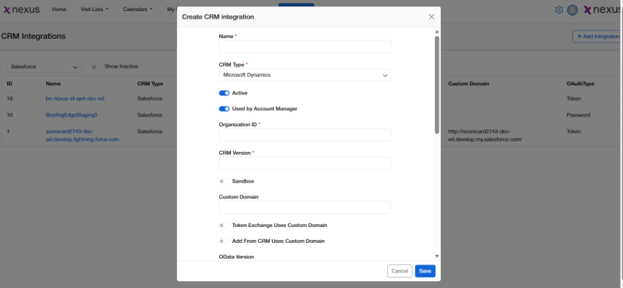
Admin/BES admin can add CRM integrations
-
Navigate to Setting>CRM Integrations>Add Integration
-
CRM type set to Microsoft Dynamics
-
Add from CRM buttons enabled for:
-
Customers
-
Attendees
-
Opportunities
-
-
Field mapping configured by administrators (where applicable)
User Access Requirements
-
User must have permission to access the relevant records in Dynamics
-
Supported roles include:
-
Administrator
-
BES Admin
-
Briefing Manager / Account Manager (as configured)
-
User Flow – Step-by-Step
Add Customer from Dynamics
-
Open a visit
-
Navigate to Customer
-
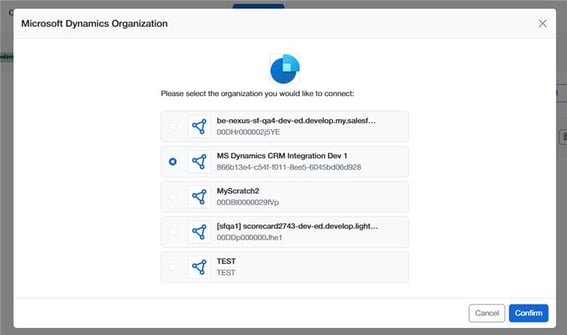
Select MS Dynamics Instance from the CRM’s List
-
Click Confirm
-
Click Add from CRM
-
Search by:
-
Account Name
-
Account ID
-
-
Select the desired account
-
Confirm to add it to the visit
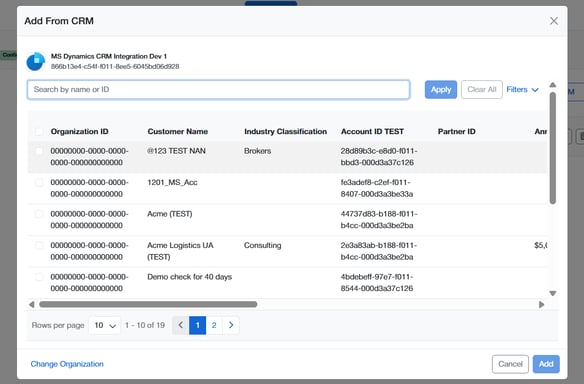
Screenshot: Add from CRM – Dynamics Customer Search
Add Attendee from Dynamics
-
Open a visit
-
Navigate to Attendees
-
Click Add from CRM
-
Search by:
-
Name
-
Contact ID
-
Email
-
-
Review search results
-
Select one or more attendees
-
Add them to the visit
Add Opportunity from Dynamics
-
Open a visit
-
Navigate to Opportunities
-
Click Add from CRM
-
Search by:
-
Opportunity Name
-
Opportunity ID
-
-
Select the appropriate opportunity
-
Add it to the visit
Data Mapping & Synchronization Behavior
|
Area |
Behavior |
|---|---|
|
Data Direction |
Dynamics → BriefingEdge |
|
Sync Type |
On-demand (during search) |
|
Editing CRM Data |
Not supported |
|
CRM IDs |
Displayed in search results |
|
Permissions |
Based on Dynamics user access |
Search Rules
-
Search button activates after 3+ characters
-
ID searches require the full ID
-
Name and email searches support partial matching
-
If more than 2,000 records match, an informational message is shown
Important Considerations & Limitations
-
CRM data is read-only once added to a visit
-
Full CRM IDs must be entered for ID-based searches
-
Partial ID searches are not supported
-
Results are limited to the user’s Dynamics permissions
-
Some advanced Salesforce-specific behaviors are not available for Dynamics
FAQs
Q: Can I edit Dynamics data from BriefingEdge?
No. Data is read-only and managed in Dynamics.
Q: Why don’t I see certain CRM records?
Only records you have access to in Dynamics will appear.
Q: Do searches update automatically?
Yes. Searches always query live data from Dynamics.
Q: Is this the same as Salesforce Add from CRM?
The experience is similar, but Dynamics-specific rules and limitations apply.