
What’s New
This release introduces the ability to:
-
View which CRM organization is currently active in Add from CRM
-
Switch between multiple connected CRM organizations
-
Connect a new CRM organization directly from the Add from CRM flow
-
Validate CRM organizations before allowing data selection
-
Prevent data pull from inactive or unapproved organizations
These improvements extend the existing Add from CRM experience without changing how CRM entities are selected once an organization is active.
Functional Summary
Previously, users could only work with a single CRM organization per session.
With Multi Org Support, users can:
-
Maintain multiple CRM connections
-
Choose which organization they want to use when opening Add from CRM
-
Seamlessly switch organizations without leaving the visit
-
Clearly see which organization they are currently pulling data from
The system ensures that only valid, active, and approved CRM organizations can be used.
Key Capabilities
-
Multi-organization awareness in Add from CRM
-
Organization selection modal when more than one org is available
-
Change Organization action for switching orgs mid-workflow
-
Direct connection of new CRM organizations
-
Validation and error handling for inactive or unrecognized orgs
-
Role-based access control for org switching and connection
Add from CRM – Multi Org Support Overview
When a user opens Add from CRM, the system evaluates how many CRM organizations are associated with that user.
Based on this evaluation:
-
Users with one organization are redirected directly to that CRM
-
Users with multiple organizations are prompted to select which one to use
-
Users can switch organizations later if needed
-
The currently selected organization is clearly displayed in the Add from CRM modal
Screenshot: Add from CRM – Active Organization Display
How Multi Org Support Works
Organization Detection
-
The system detects all CRM organizations (CRMUserInstances) linked to the user.
-
Only active and approved organizations are eligible.
Organization Selection
-
If multiple orgs exist and no default is set, the “Salesforce Organization” selection modal is shown.
-
Users choose which org to authenticate against.
Session Context
-
The selected organization becomes the active session context.
-
This context remains active until the user switches orgs or the session expires.
Organization Switching
-
If more than one org is available, a Change Organization button appears in Add from CRM.
-
Switching may require re-authentication if the org has not been recently authorized.
Configuration & Prerequisites
User Roles
Multi Org Support is available to the following roles:
|
Role |
Access |
|---|---|
|
Coordinator (Briefing Manager) |
Yes |
|
Admin |
Yes |
|
BE Admin |
Yes |
|
Account Manager (Requester) |
Limited (selection only) |
|
View-Only User |
No |
|
Caterer |
No |
Prerequisites
-
At least one visit must exist
-
User must have one or more CRM organizations associated
-
CRM organization must be active and allowed for the tenant
CRM Integration Behavior
Salesforce
-
Supports multiple Salesforce organizations per user
-
Organization-specific login is enforced
-
Users may:
-
Select an existing org
-
Connect a new Salesforce org
-
Switch orgs during Add from CRM
-
-
Inactive or unrecognized orgs trigger an error message
-
No CRM data can be pulled until org validation passes
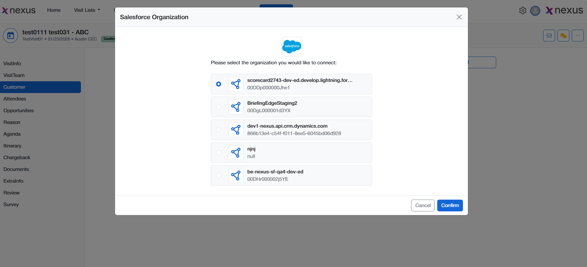
Screenshot: Salesforce Organization Selection Modal
Microsoft Dynamics
-
Multi Org Support follows the same conceptual model
-
Behavior depends on how multiple Dynamics instances are configured for the tenant
-
Organization validation rules still apply
-
If only one Dynamics org is available, selection UI is not shown
If tenant-specific Dynamics behavior differs, it is handled through configuration and validation rules.
User Flow – Step-by-Step
-
User opens an existing visit
-
User clicks Add from CRM
-
System checks how many CRM organizations are available
If one org exists
-
User is redirected directly to that CRM login
-
Add from CRM opens after authentication
If multiple orgs exist
-
“Salesforce Organization” modal is displayed
-
User selects an organization
-
User authenticates (if required)
-
Add from CRM opens with the selected org active
Important Considerations & Limitations
-
Organization switching is hidden if only one org is available
-
Inactive or unapproved orgs cannot be used
-
Errors are shown when validation fails
-
Organization selection applies only to the current session
-
Data pulled always belongs to the currently active org
-
Some behaviors (e.g., default org selection) may depend on tenant configuration
FAQs
How do I know which CRM organization I am using?
The active organization name is displayed at the top of the Add from CRM modal.
Can I add a new CRM organization myself?
Yes, eligible users can connect a new organization directly from Add from CRM.
What happens if an org is not allowed?
You will see an error message and will be prompted to select or log in with another org.
Does this change how CRM data is selected?
No. Once an organization is active, CRM entity selection works exactly as before.