
Functional Summary
The feature allows administrators to:
-
Define which CRM fields appear as filters in Add From CRM
-
Control how CRM records are displayed in search results
-
Ensure filters align correctly with CRM field types
-
Provide end users with a more targeted and reliable CRM search experience
End users benefit from:
-
Faster searches
-
Cleaner, more relevant results
-
Reduced errors during CRM record selection
Key Capabilities
|
Capability |
Description |
|---|---|
|
Custom Filter Fields |
Admins can define filters based on mapped CRM fields |
|
Custom Results Display |
Control which CRM fields appear as result columns |
|
CRM Field Validation |
Enforced matching between filter type and CRM data type |
|
Multi-CRM Support |
Works with Salesforce and Microsoft Dynamics |
|
Admin-Only Configuration |
End users cannot modify filter logic |
Configuration & Administration
Access Requirements
-
Admin privileges required
-
Active CRM integration (Salesforce or MS Dynamics)
Step-by-Step: How to Configure Custom Filters
-
Navigate to CRM Request Configuration
-
Select a CRM entity:
-
Account
-
Contact
-
Opportunity
-
-
Select The CRM Instance
-
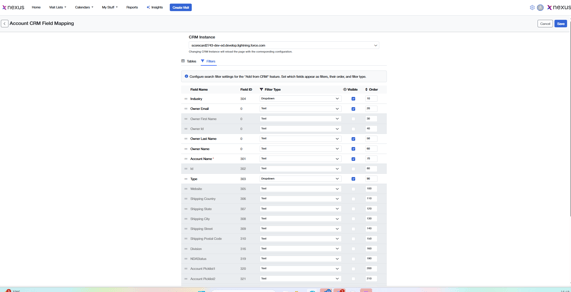
Open the Filters tab
-
Review available CRM fields (read-only list)
-
For each field:
-
Enable Visible if it should appear as a filter
-
Select the appropriate Filter Type
-
-
Save the configuration
Screenshot: Filter Configuration UI
Add From CRM – Custom Results Display
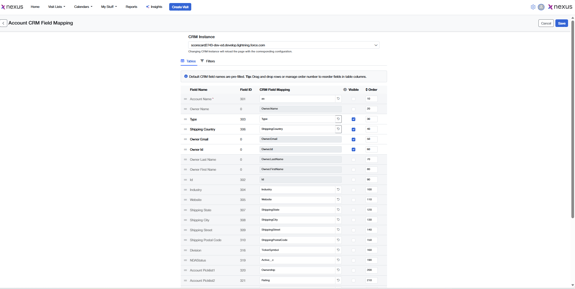
Admins can configure which CRM fields appear in the search results grid when users perform an Add From CRM action.
Supported Behavior
-
Display fields are read-only
-
Order of columns follows admin configuration
-
Display fields do not affect filtering logic
-
Visibility can be decided if that field must appear in columns
Screenshot:
Custom Filter Fields – Behavior & Validation
Administrators can control how CRM records appear in the Add From CRM search modal.
Configuration
-
Managed from the Table tab in CRM Request Configuration
-
Fields are shown as columns only when Visible = ON
-
Column order follows the configured Order value
-
Filters are applied using AND logic
-
Multiple filters can be applied simultaneously
-
Search triggers only after a minimum of 3 characters
-
Clearing filters resets results
Results Display Behavior
-
Read-only grid
-
Entity-specific layouts
-
Column headers match configured Field Name
-
Order updates immediately after saving
CRITICAL WARNING – CRM FIELD TYPE MATCHING (READ CAREFULLY)
Salesforce CRM – Mandatory Validation
When integrating with Salesforce CRM:
The filter type configured in Add From CRM must exactly match the underlying Salesforce field’s data type.
If a filter is configured with a mismatched type, the system will throw an error and CRM search results will fail to load.
This validation is strictly enforced for Salesforce integrations.
Microsoft Dynamics CRM – Informational Only
For Microsoft Dynamics CRM:
The Add From CRM search continues to function even if filter types do not strictly match the Dynamics field type.
No runtime error is thrown due to filter type mismatch.
However, it is still recommended to align filter types correctly for consistency and best results.
Supported Filter Type ↔ CRM Field Type Mapping
Administrators must ensure that filter types are configured according to the CRM field’s data category, especially for Salesforce.
|
Filter Type |
Supported CRM Field Type |
|---|---|
|
ID |
ID fields |
|
ID – Multi Select |
ID fields |
|
Date |
Date fields |
|
Number |
Number fields |
|
Number – Multi Select |
Number fields |
|
Dropdown |
Picklist fields |
|
Multi Select |
Picklist fields |
|
Multi Value Select |
Picklist fields |
⚠️ Salesforce Only:
If a filter type outside of the supported mapping above is applied to a Salesforce field, the Add From CRM results will fail to load.
Best Practice Recommendation
-
Always verify the CRM field data type before configuring filters.
-
Revalidate filter configuration after:
-
CRM schema changes
-
Field type updates
-
New custom fields added in Salesforce
-
CRM Integration Details
Salesforce
-
Supports standard and custom fields
-
Honors Salesforce field data types
-
Picklist filters rely on Salesforce picklist values
-
Field type mismatches result in runtime errors
Microsoft Dynamics
-
Supports mapped Dynamics entity fields
-
Data type enforcement is strict
-
Option Sets must be configured as matching filter types
-
Misconfigured filters prevent search execution
Important Considerations & Limitations
-
Filters are admin-configured only
-
No automatic data type conversion is performed
-
CRM schema changes may require reconfiguration
-
Feature availability depends on CRM permissions
-
Filters and display fields are entity-specific
-
Results display fields cannot be used as filters unless explicitly configured
FAQs
Q: Can end users modify filters?
No. Filters are defined by administrators/Bes Admins only.
Q: What happens if a CRM field type changes?
The filter must be updated manually to match the new type.
Q: Are filters shared across CRM objects?
No. Each entity (Account, Contact, Opportunity) is configured separately.