
Functional Summary
When users open Add From CRM from a Visit:
-
Search results are filtered more intelligently based on:
-
Visit-linked Accounts
-
User-applied filters
-
Global Closed Opportunity settings
-
-
Closed Opportunities are included only when they fall within a configured date range
-
Results remain performant and easy to navigate, even with large CRM datasets
Key Capabilities
|
Capability |
Description |
|---|---|
|
Visit-based filtering |
Limits Opportunities and Contacts to Accounts linked to the Visit |
|
Manual override |
Users can search across all CRM records when allowed |
|
Closed Opportunity filtering |
Shows closed Opportunities only within a configured timeframe |
|
CRM-specific logic |
Salesforce and Dynamics apply their own configured rules |
|
Pagination |
Results are paginated with selection preserved across pages |
|
Data integrity |
Ensures correct Account associations when adding Opportunities |
Add From CRM Modal – Search Enhancements Overview
The Add From CRM modal now adapts its behavior based on:
-
Whether the Visit has linked Accounts
-
Which entity is being searched (Opportunities or Contacts)
-
Admin-configured Global Settings
-
CRM system (Salesforce or MS Dynamics)
These rules are applied automatically to reduce manual filtering and ensure relevant results.
Opportunity Search Enhancements
Default Behavior
When opening Add From CRM → Opportunities:
-
If the Visit has linked Accounts:
-
The option “Only Opportunities Associated with Visit Accounts” is:
-
Visible
-
Selected by default
-
-
Results automatically show Opportunities linked to those Accounts
-
-
If the Visit has no linked Accounts:
-
The option is visible but disabled
-
No results are shown until the user performs a search
-
User Controls
-
Users may uncheck the option (when enabled) to:
-
Search across all accessible Opportunities in CRM
-
-
All existing filters (e.g., custom filters, search text) continue to apply using AND logic
Contact Search Enhancements
Contact search follows the same pattern as Opportunities, with one key difference in account handling.
Default Behavior
When opening Add From CRM → Contacts:
-
If the Visit has linked Accounts:
-
“Only Contacts Associated with Visit Accounts” is selected by default
-
Results show Contacts tied to those Accounts
-
-
If no Accounts are linked:
-
The option is disabled
-
No default results appear
-
Important Contact Behavior
-
When adding a Contact:
-
Only the Contact is added to the Visit
-
The Contact’s Account is not automatically added
-
This prevents unintended Account associations
-
Closed Opportunity Date Filter
The Closed Opportunity Date Filter ensures that users only see relevant closed Opportunities during CRM searches.
This filter:
-
Is controlled by Admin configuration
-
Applies automatically during Add From CRM searches
-
Does not retroactively affect Opportunities already added to a Visit
How the Closed Opportunity Filter Works
Admin Configuration
Admins configure this in Global Settings:
-
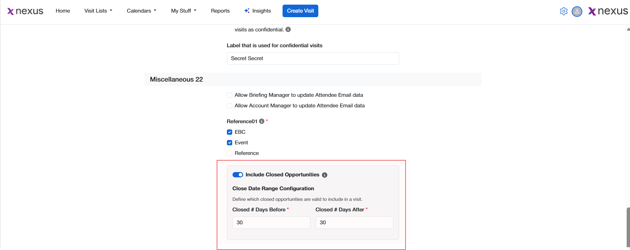
Navigate to Global Setting>Miscellaneous>Include Closed Opportunities Toggle
-
Enable or disable Include Closed Opportunities
-
Define:
-
X days before Visit Start Date
-
Y days after Visit Start Date
-
Runtime Behavior
During an Add From CRM search:
-
Open Opportunities are always included
-
Closed Opportunities are included only if:
-
The Visit has a Start Date
-
The Opportunity’s Closed Date falls within the configured X/Y window
-
-
If the Visit has no Start Date:
-
Closed Opportunities are excluded
-
CRM-Specific Rules
|
CRM |
Behavior |
|---|---|
|
Salesforce |
Uses Salesforce-configured X/Y values |
|
MS Dynamics |
Uses Dynamics-configured X/Y values |
|
BriefingEdge |
Does not override CRM-level configuration |
If CRM and BriefingEdge values differ, CRM values always take precedence.
User Flow – Step-by-Step
-
Open a Visit
-
Navigate to Opportunities or Contacts
-
Click Add From CRM
-
Review default filters applied
-
(Optional) Adjust search filters or toggle visit-account restrictions
-
Review paginated search results
-
Select one or more records
-
Click Add
Special Case – Opportunity with Non-Visit Account
If a user adds an Opportunity tied to an Account not linked to the Visit:
-
A confirmation message appears
-
Choosing Continue:
-
Adds both the Opportunity and its Account to the Visit
-
-
Choosing Cancel:
-
Adds nothing
-
Important Considerations & Limitations
-
Closed Opportunity settings apply only at search time
-
Changing settings does not remove previously added Opportunities
-
Pagination preserves selections across pages
-
Contact additions do not auto-add Accounts
-
If no Visit Start Date exists, closed Opportunities are excluded
-
Search performance depends on CRM response times
12. FAQs
Q: Why don’t I see any Opportunities when I open Add From CRM?
A: The Visit may not have linked Accounts, or Closed Opportunities may be outside the configured date range.
Q: Can I search all Opportunities?
A: Yes, if the Visit has linked Accounts, you can uncheck the visit-account filter.
Q: Why did an Account get added when I added an Opportunity?
A: The Opportunity was tied to an Account not already linked to the Visit, and you confirmed the addition.
Q: Do closed Opportunities already added get removed if settings change?
A: No. Settings apply only to future searches.